


About CloudRF
CloudRF is an accessible service for modelling radio propagation, established in 2012.
CloudRF was built as a cost-effective solution for busy radio operators and engineers who do not have the time required to use complex engineering tools.
At CloudRF, we pride ourselves on innovation and have transformed the way people conduct radio coverage modelling, disrupting what was a very expensive and time consuming desktop market.
Our API first design means the service can be integrated directly into different solutions across industries. We’re used for planning in dynamic markets including Search and Rescue, Mining, Transportation and Air surveillance.
Benefits
Accuracy
Our API supports precision DTM and LiDAR at 1m resolution, soft clutter / landcover and custom obstacles. You can define regional clutter profiles for different trees, seasons and even building architectures.
We field test our software regularly to calibrate models and clutter for representative environments and have drive-survey tools for tuning.
Speed
Our CPU and GPU engines are the fastest, and most economical, on the web and support large full-network simulation with diffraction and attenuation.
We have APIs capable of rapid Monte Carlo simulation to find the best site(s) as well as satellite spotbeam coverage accurate to street level accuracy.
Availability
Our global high resolution data and antenna patterns are ready to go now. Save yourself hours of mission preparation.
We include global data in all our plans, with a clear price which we are proud to publish.
Economy
We have simple interfaces designed for busy humans with options to support radio technologies from HF Skywave to Satellite spotbeams.
We believe a tool should be quick to pickup and use.
Our Mission
Our mission is to make radio planning simple and accessible.
Radio modelling is complicated that usually needs an enormous number of resources and preparation to do it accurately and efficiently. We want it to be accessible, accurate, and user-friendly.
Innovation Roadmap
Year |
Milestones |
|---|---|
2011 |
RFSignal for Android launched. |
2012 |
CloudRF.com website launched with web interface |
2013 |
Keyhole Radio™ interactive layer for Google Earth. |
2014 |
Virtual machines offered. |
2015 |
ITU propagation models added to engine. |
2016 |
LiDAR high resolution data in engine and interfaces. |
2017 |
Drone photogrammetry support via Pix4D. |
2018 |
New LiDAR propagation engine SLEIPNIR developed. |
2019 |
30 meter landcover with 584 types for CONUS and EU. |
2020 |
3D building support with configurable attenuation. |
2021 |
ATAK chatbot |
2022 |
GPU area API |
2023 |
GPU Multisite / MANET |
2024 |
3D API with multipath and phase effects. |
2025 |
Phase Tracing interface for BYO glTF based simulations. |
2026 |
High resolution tree canopy data |
Supported Technologies
Anything that uses radio from 2-100,000 MHz.
The protocol agnostic API can be used to model diverse analogue and digital communications with support for anything from simplex voice channels to wideband trunked data bearers.
CloudRF has been used to plan private 5G networks, Search and Rescue operations, Counter Drone systems and Rail safety networks.
Platforms
The following platforms are supported:
Android, Linux, Mac/OSX and Windows are supported.
Our ATAK plugin lets you model the coverage of live map data
Our Web interfaces work across different browsers
Google Chrome is recommended for best performance.
CloudRF.com (Public Service)
Account Registration
To Register your account on CloudRF:
On the CloudRF website (https://cloudrf.com/):
Click on My Account tab.
The My Accounts screen will appear.
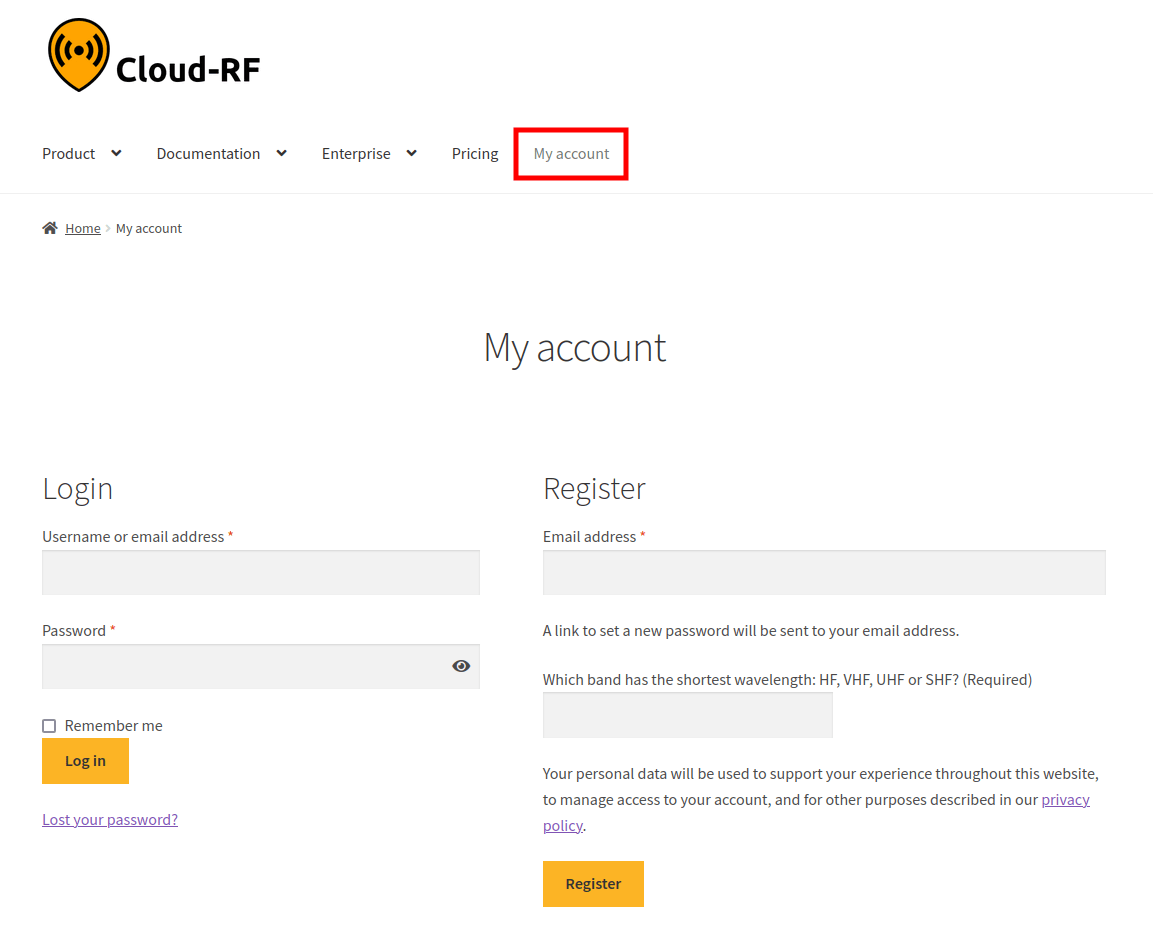
Under the Register section,
In the Username field, enter the username as desired.
In the Email Address field, enter your email address.
In the Quiz field, enter your answer to the respective question.
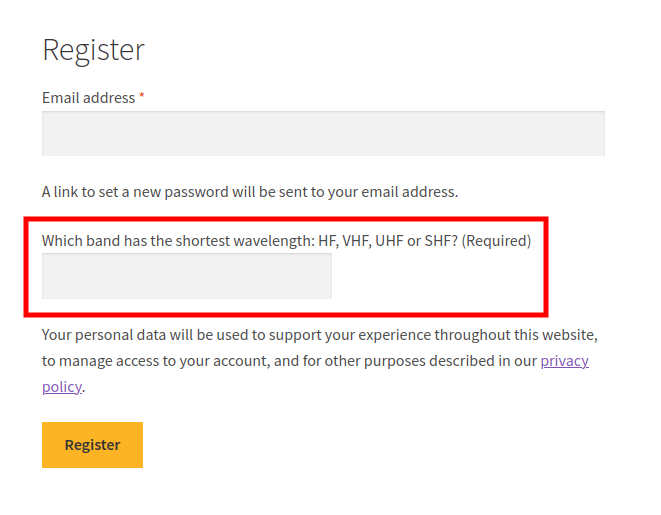
This is to make sure that the user is a human. If you do not know the answer, you can always Google it!
Click on Register button.
A Verification link will be sent to your registered email id.
Open your registered email id.
If you have not received the email, please check you registered email SPAM folder. You may set CloudRF email as Not Spam in your email to receive the emails directly in your inbox.
Click on the Verification link.
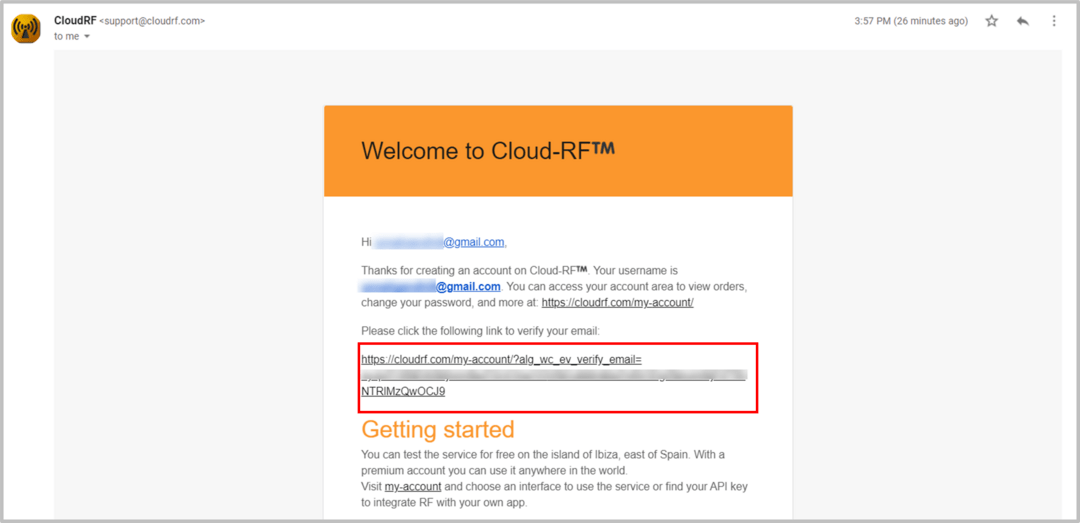
The Success Message pop-up will appear, and you will be logged in into your account.
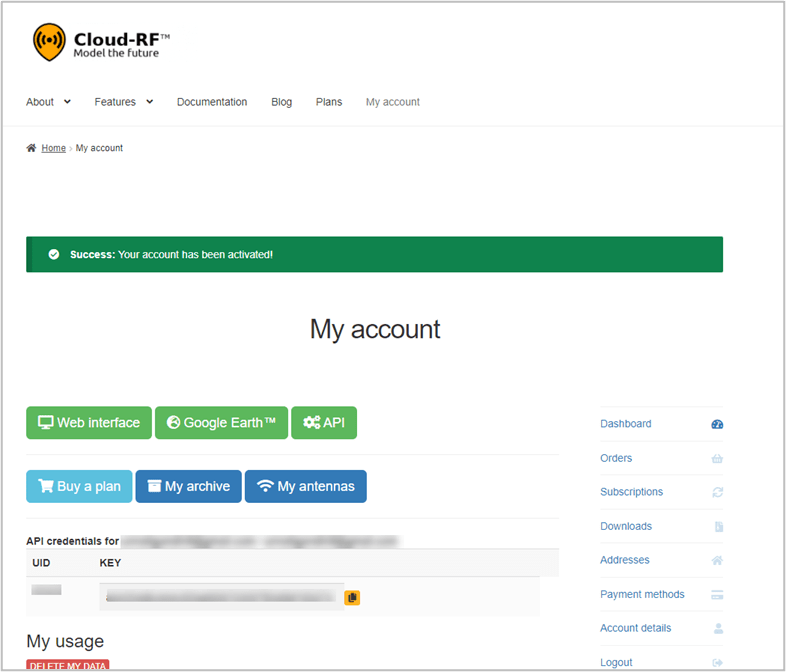
The CloudRF Tool Home Page will be displayed.
Login
To Log in into your Account on the CloudRF:
On the CloudRF website (https://cloudrf.com/):
Click on My Account tab.
The My Accounts screen will appear.
Under the Login section:
In the Username or email address field, enter your username or email address.
In the Password field, enter your password.
You may select the Remember me checkbox to save the credentials on your device.
Click on Log in button.
Lost Your Password?
If you have lost your password, you can reset it through your registered email address.
To do so:
Click on Lost your Password? link.
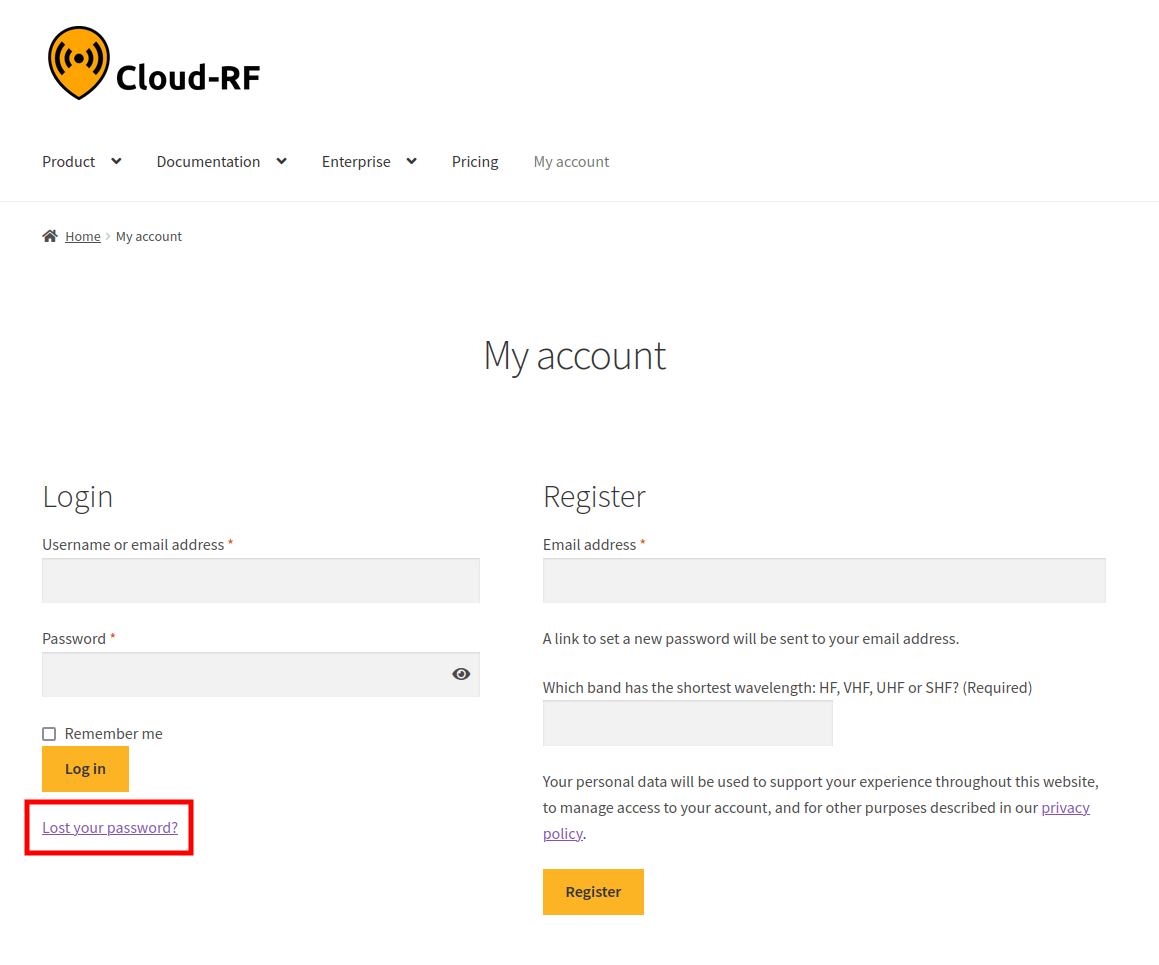
The Lost Password screen will appear.
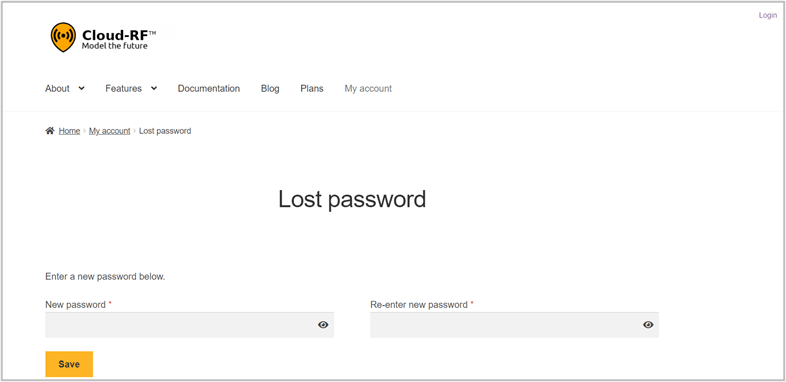
Enter the New Password as desired.
Re-enter new password to confirm.
Click on Save button.
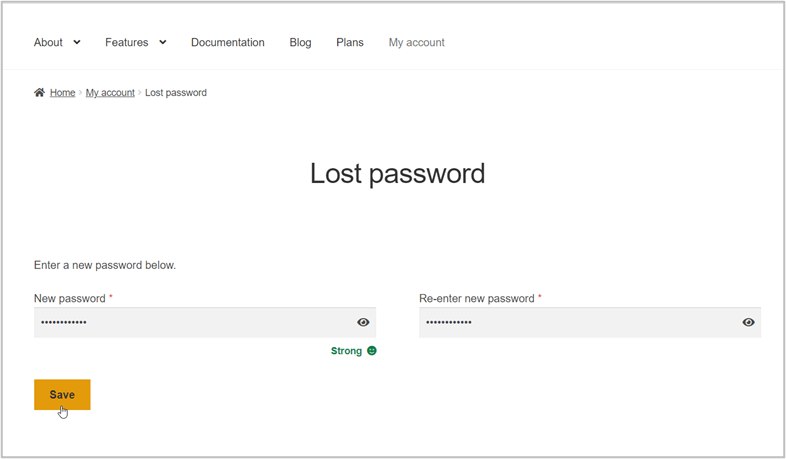
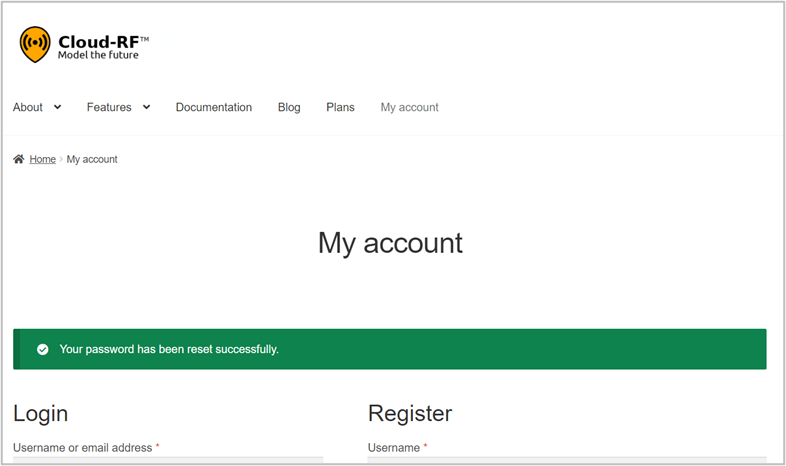
The Success message pop-up will appear.
The Home Page
After you log in to your CloudRF account, the Home Page will be displayed.
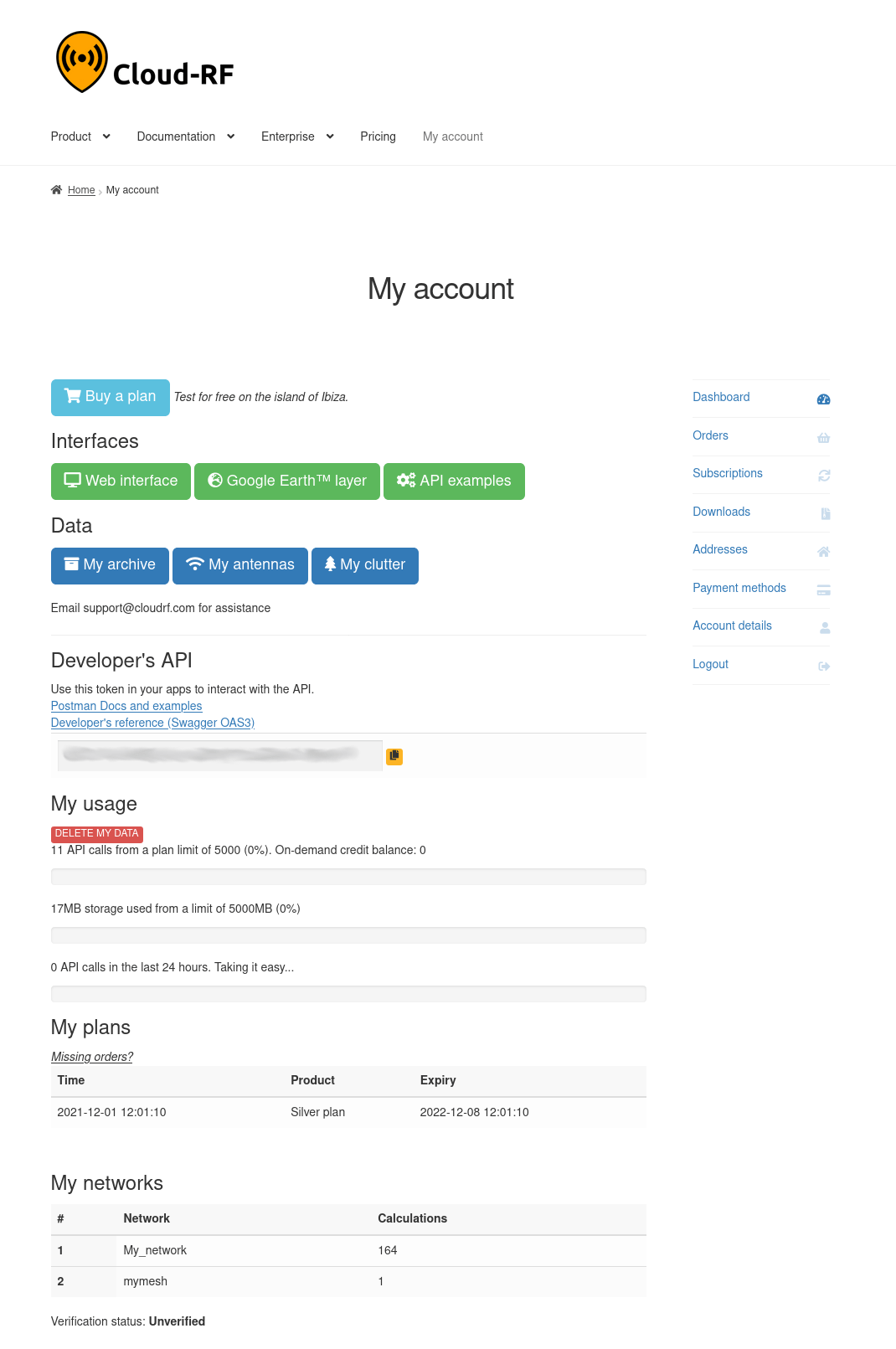
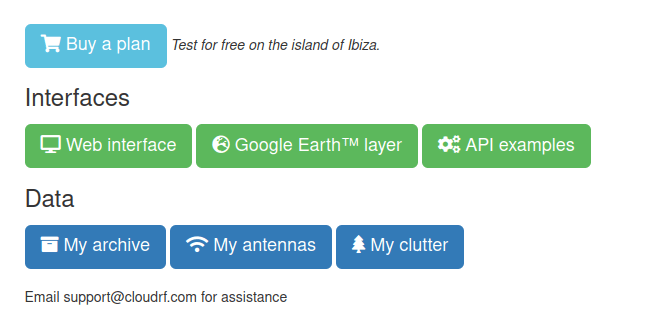
You can access the Web Interface, API, My archive, My antennas and My clutter by clicking on the respective button on the Home Page.
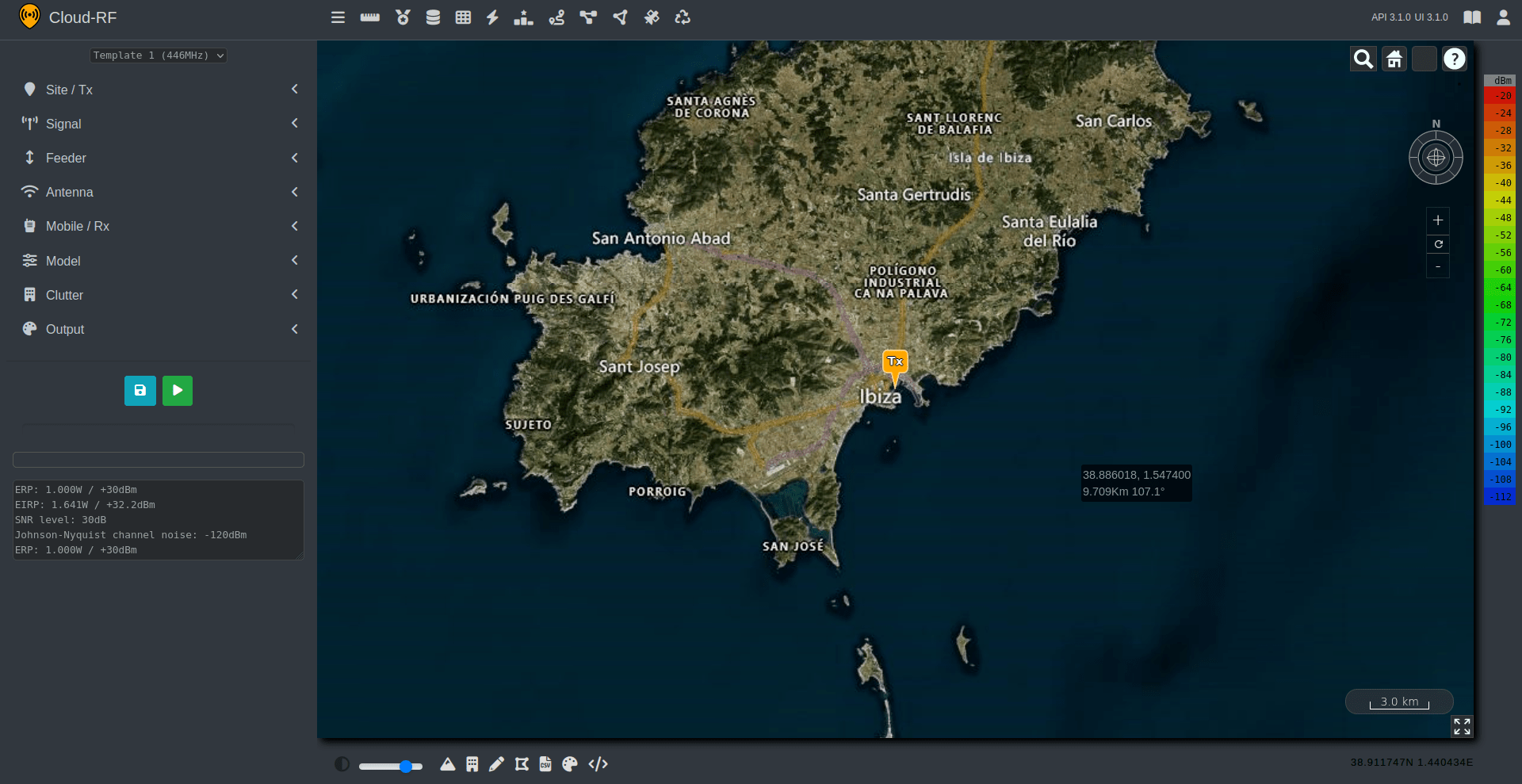
Click on Web Interface button to know how you will access the CloudRF Modelling tool itself right in your web browser.
Click on API button to access the API.
You can see your API key and your current subscription plan as well.
The CloudRF API for radio planning lets you model radio coverage for any RF system between 20 and 100,000MHz.
A CloudRF account and active plan are required to use the API.
Click on Buy a Plan button to purchase a plan.
Moreover, it lets you upgrade your account as well to access all the available features.
You can add the desired plan(s)/subscription(s) to your cart by clicking on the Add to Cart / Sign up now button.
You may also scroll down to view the FAQs section.
The Right Navigation Menu with the following menu options will be displayed. You can click on the:
 Dashboard - for accessing the Home Page.
 Orders - to view all your orders.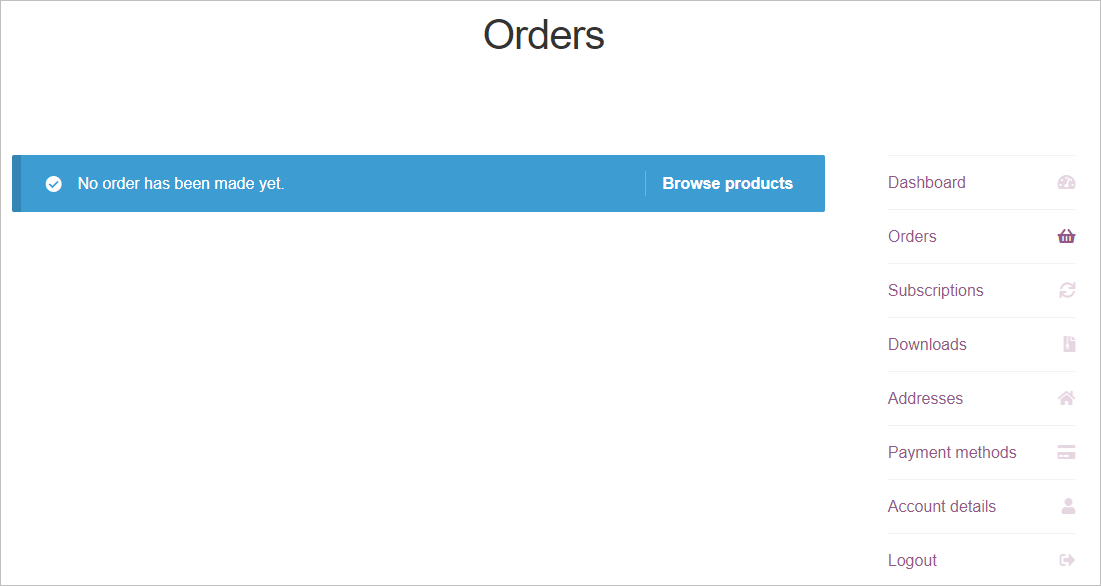
If no orders have been made, you may click on Browse products button to browse the available products.
 Subscriptions - to view all your subscriptions.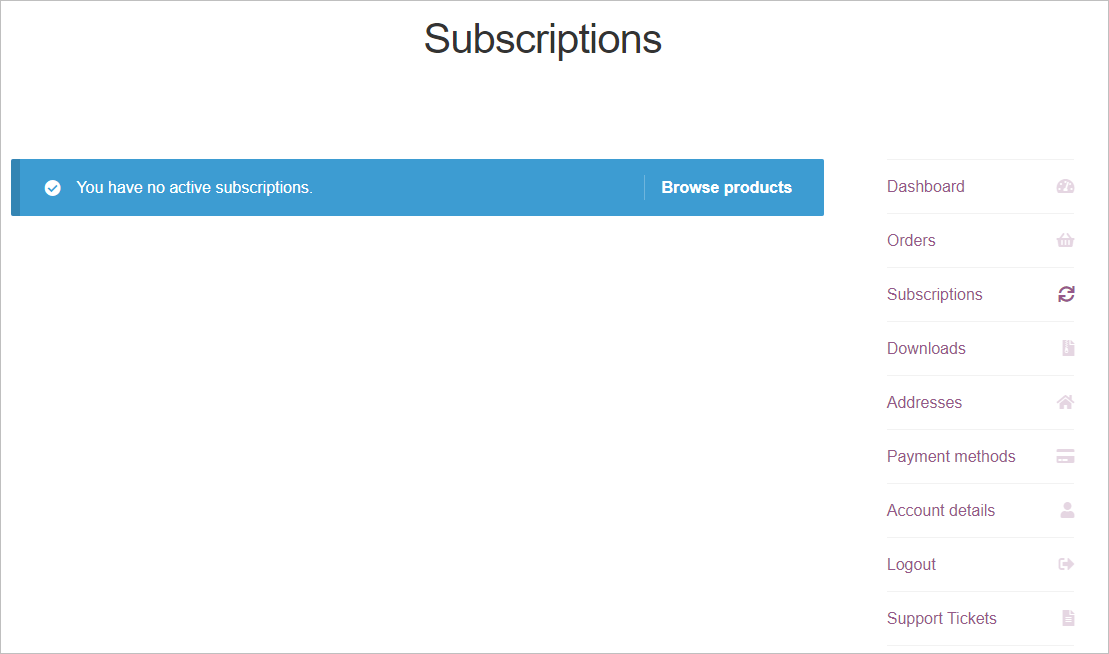
If you have no active subscriptions , you may click on Browse products button to browse the available subscriptions.
 Downloads - to view all the downloaded files.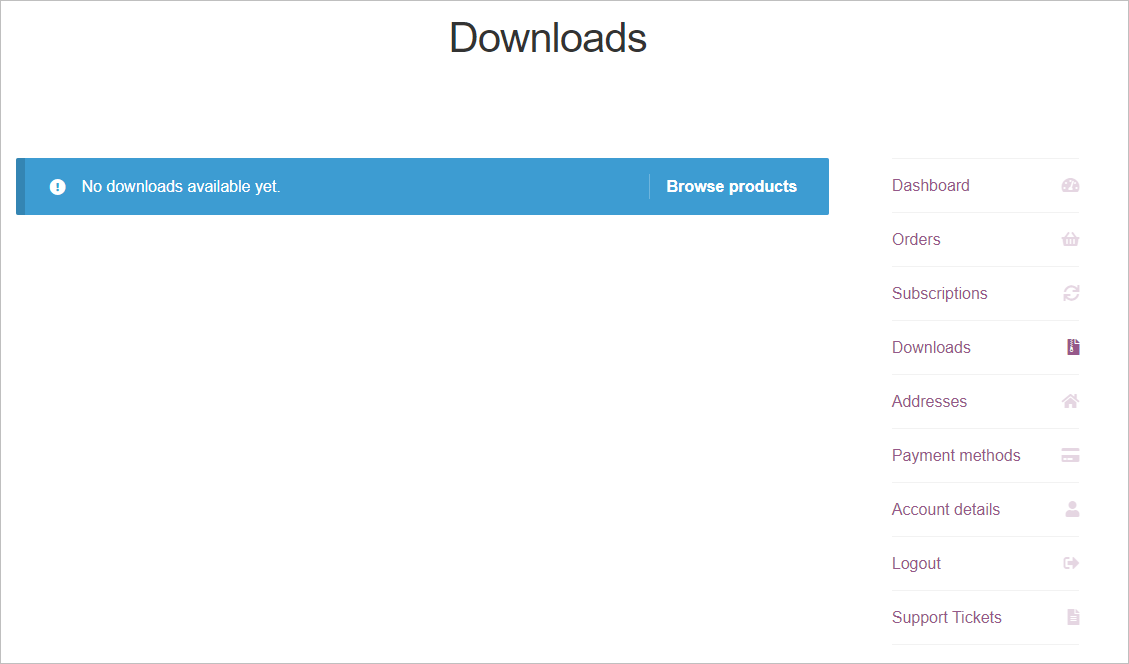
You may click on Browse products button to browse the available products.
 Addresses - to view the shipping and billing addresses added to your account.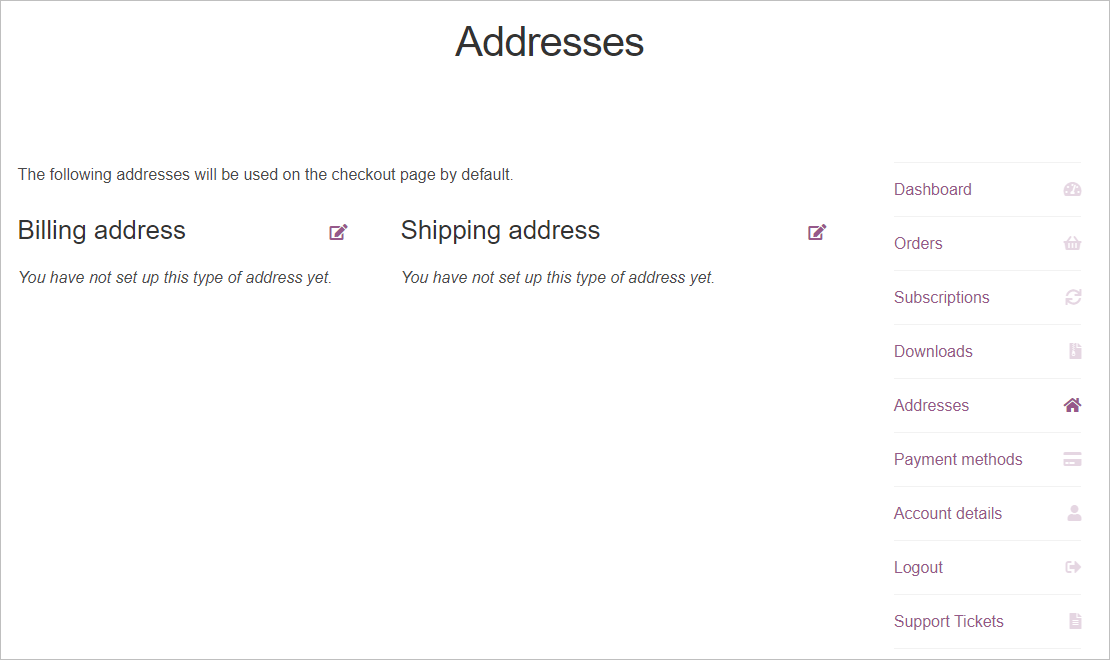
 Payment methods - to view the payment methods added to buy your orders or subscriptions.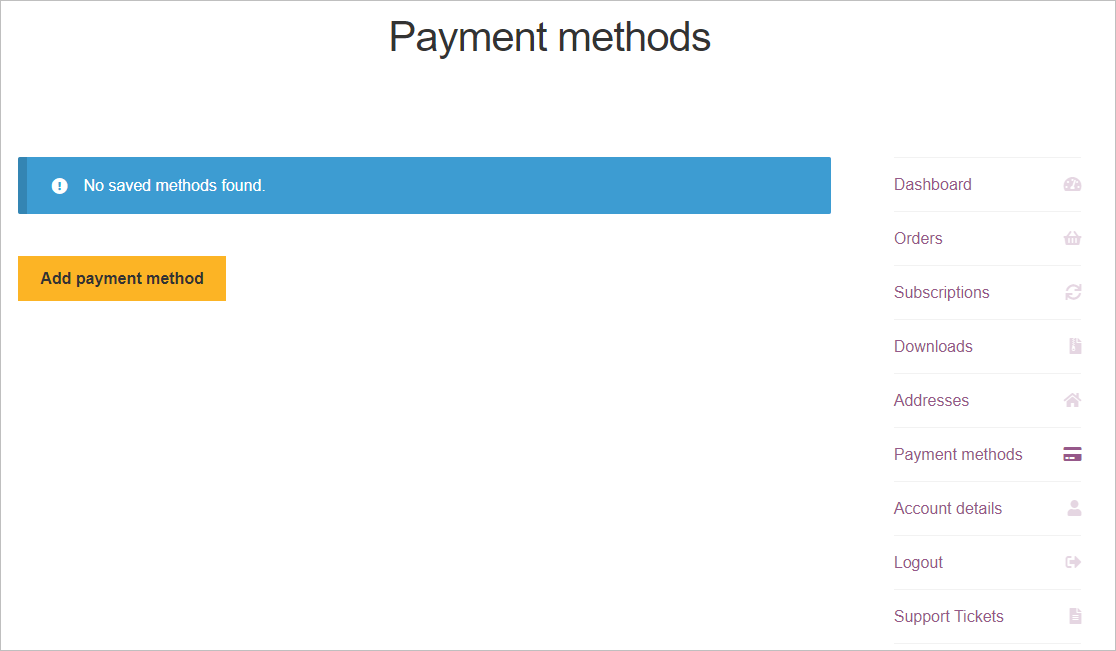
You may also add a payment method by clicking on the Add Payment Method button.
Note: Credit card details are not saved on CloudRF. They are stored with our payment gateway and we hold a temporary token.
 Account details - for accessing your account details and edit them if required.
You can change your password, contact preference, and time zone settings from here.
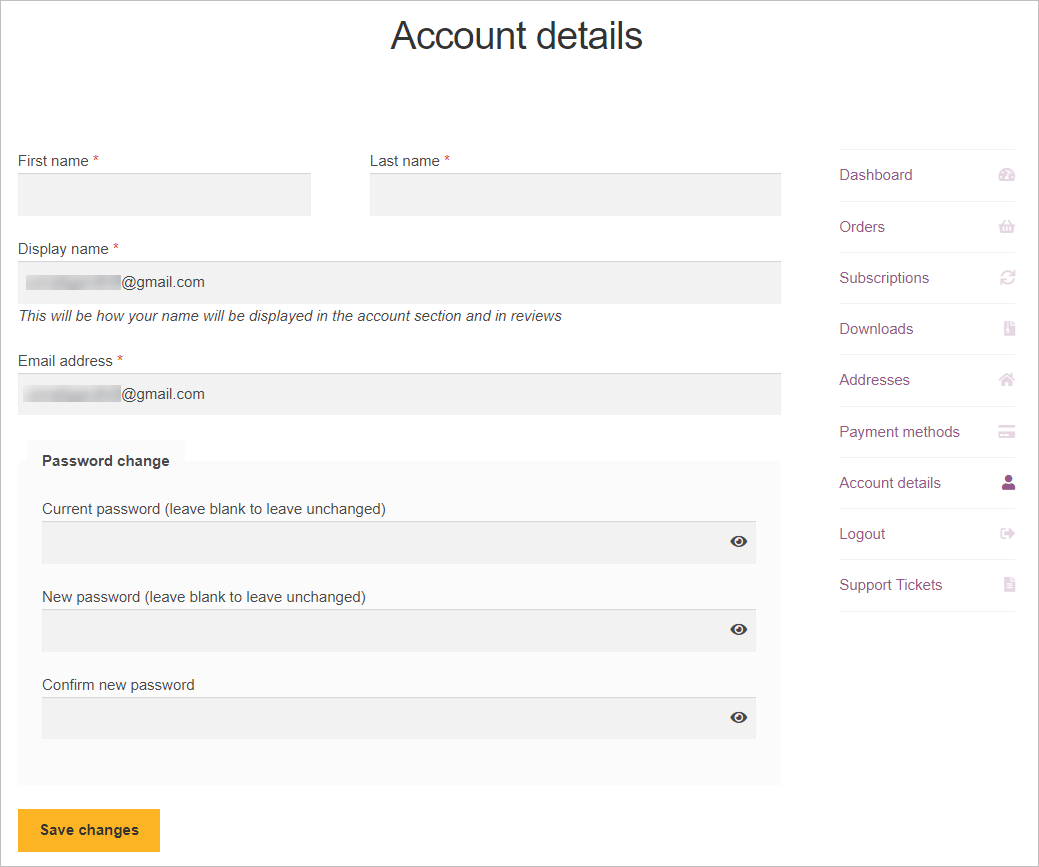
Click on Save Changes button after making the required changes.
 Logout - if you wish to logout from your account.
The Login/Register screen will be displayed.
Dashboard
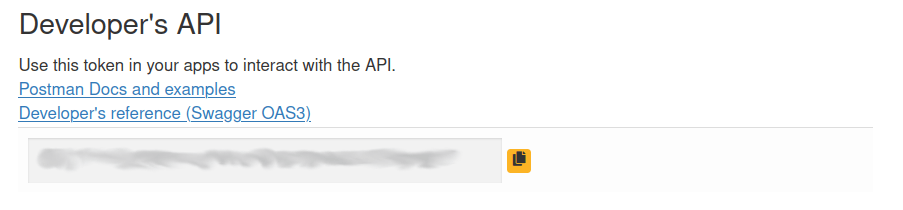
The API credentials of your account - UID and KEY will be displayed.
To copy the API Key, you can click on the copy
 icon.
icon.
Under My usage section:
The API Calls details and the Storage used will be displayed.
You may click on the Delete My Data button to delete the data of your usage.
Under My Plans section:
Your Plan details (Time, Product and Expiry) will be displayed.
You can click on Missing your orders link as per your requirement.
Under My Networks section:
Your Network details (Network and Calculations) will be displayed.
Ordering a Plan
You can order a plan or a subscription by adding the desired product in your cart and then paying for the same.
To order a plan or a subscription:
Under My Accounts tab, you can click on the Buy a plan button.
OR
Click on Plans tab.
OR
Under My Accounts tab:
Click on Orders, Subscriptions or Downloads.
Click on Browse Products button.
The Plans screen will be displayed.
You can add the desired plans or subscriptions by clicking on the Add to cart or Sign up now button respectively.
You can also upgrade your account from here to access all the available features.
Choosing an Interface
On CloudRF, there are four major Interfaces available:
CloudRF API
Web Interface
3D Phase Tracing
PNUT Project Interface
The following is the description and the steps of loading of each interface:
Web Interface
The Web interface is the primary user interface for CloudRF that works on desktops, tablets and mobiles.
To load the Web Interface:
Under My Accounts tab, click on Web Interface button.
The Web Interface will be displayed.
CloudRF API
The CloudRF API is a public programming interface which allows developers to pull upon the power and data of CloudRF with just a few lines of code (in a language of your choice).
Integrate radio planning into your application or website without the heavy CPU, memory or disk resources required
To load the CloudRF API:
Under My Accounts tab, click on API button.
You can access your API and view your API key & your current subscription plan.
The CloudRF API for radio planning lets you model radio coverage for any RF system with global data and high performance compute ready to go.
A CloudRF account and active plan are required to use the API.
3D Phase Tracing
The Phase Tracing interface is a web based interface to our 3D engine which supports reflections, material characteristics, multipath, scattering and phase tracking. It is designed for small dense problems such as a factory, subway station or a small campus. It does not scale to city wide or large scale problems due to memory limits.
To use it: - Upload a 3D model as a glTF / glB file - Add transmitters within the model - Click a transmitter to change its settings - Set the required number of reflections and material defaults - Run the simulation
Model gallery: https://cloud-rf.github.io/CloudRF-API-clients/model-gallery/index.html
PNUT Project Interface
This premium interface is designed for organisations requiring collaboration across technologies
It supports PACE plans with different technologies eg. Cellular, VHF, SATCOM.
A key aspect of this interface is the ability to scale knowledge through organisation templates so a senior planner can create templates a team can use.
Performance Tips
Following are the tips and tricks that can help you maximise CloudRF performance.
Ensure you have a GPU video card and a web browser that supports WebGL.
Reduce your screen resolution to no more than 1920 x 1080px.
Switch off 3D terrain in the interface as this layer uses more memory.
Close other 3D applications like Google Earth which will use video memory
Close unused browser tabs for other websites to save memory.
For a self hosted server, install the server certificate to enable caching
Status page
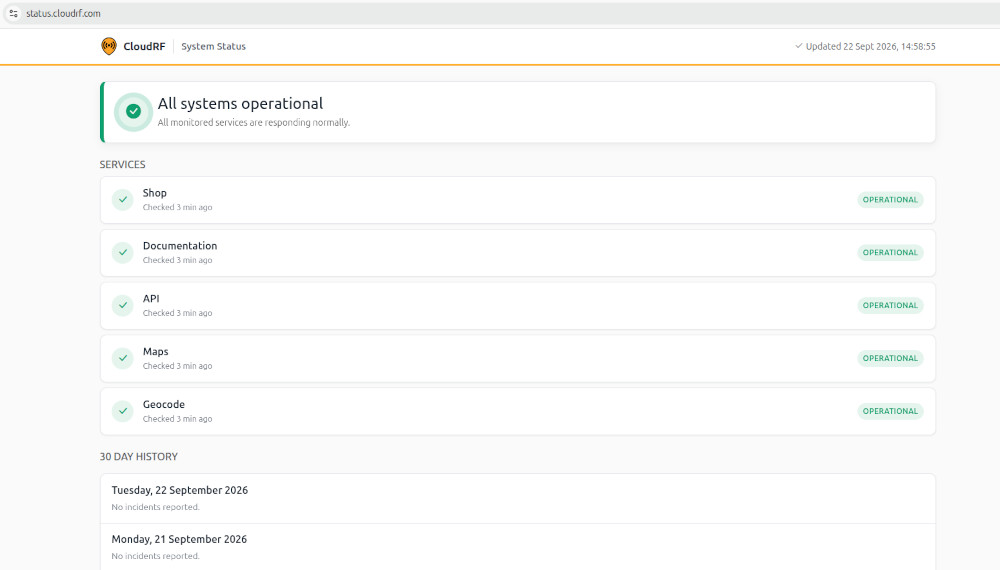
A status page is available at status.cloudrf.com
This page shows the availability for various components of the service. Most are independent, so if the shop is offline the API will still be online for example.
The production service uses load balancers with redundant servers to allow for live patching so maintenance windows are rare but will be published here when needed.
AI statement
CloudRF has been in development since 2012. We recognise the time saving potential for GenAI with mundane tasks, including mobile app development, but also a significant risk of inaccuracy in RF simulation due to the sheer complexity of this topic. We do not trust it with algorithm development.
Generative AI (Claude) was used in 2026 to assist in the following tasks:
Summarising public blogs for this documentation
Creating public demos for the Github gallery
Feature development for the ATAK plugin
Co-developing new features for the PNUT interface
Identifying obsolete code and data for removal
Identifying security vulnerabilities in legacy functions
Analysing code to determine if vulnerable libraries are used
Drafting OpenVEX mitigation statements for unused third party libraries
The generated text and code was verified for accuracy by the author, who retains copyright.
Copyright
Copyright © 2026 Farrant Consulting Ltd. All rights reserved.
Unauthorised copying, modification or distribution of this software and its associated documentation is strictly prohibited unless stated otherwise. This software is proprietary and confidential. Misuse will result in civil and potentially criminal charges.