Networks
A network groups radios so they can be coloured and modelled together as one system. Every radio in a project belongs to a network; a project can hold as many networks as you need - a red team and a blue team, one network per site, or a single network for everything.
Select a network in the left sidebar to show its settings on the right sidebar.
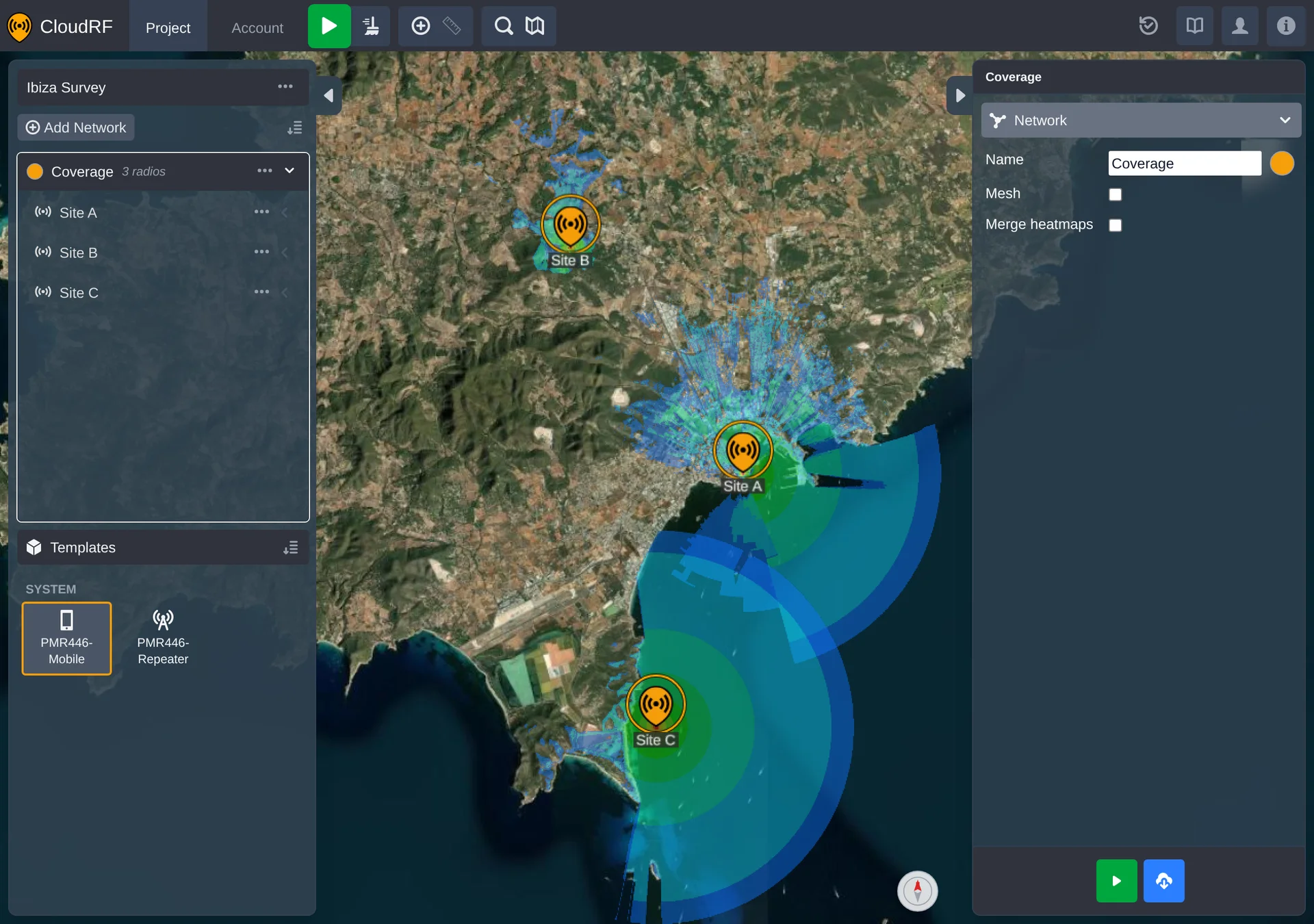
Mesh and Merge Heatmaps
A network offers two independent checkboxes:
| Field | Description |
|---|---|
| Mesh | Links every radio in the network to every other radio, calculating mesh links between each pair. |
| Merge heatmaps | Combines each radio's individual coverage into a single multisite heatmap, calculated with the network's shared settings rather than each radio's own. |
Enabling either checkbox reveals a shared Mobile Rx, Model, Environment and Output group at network level. These settings are used for the mesh links and the merged heatmaps.
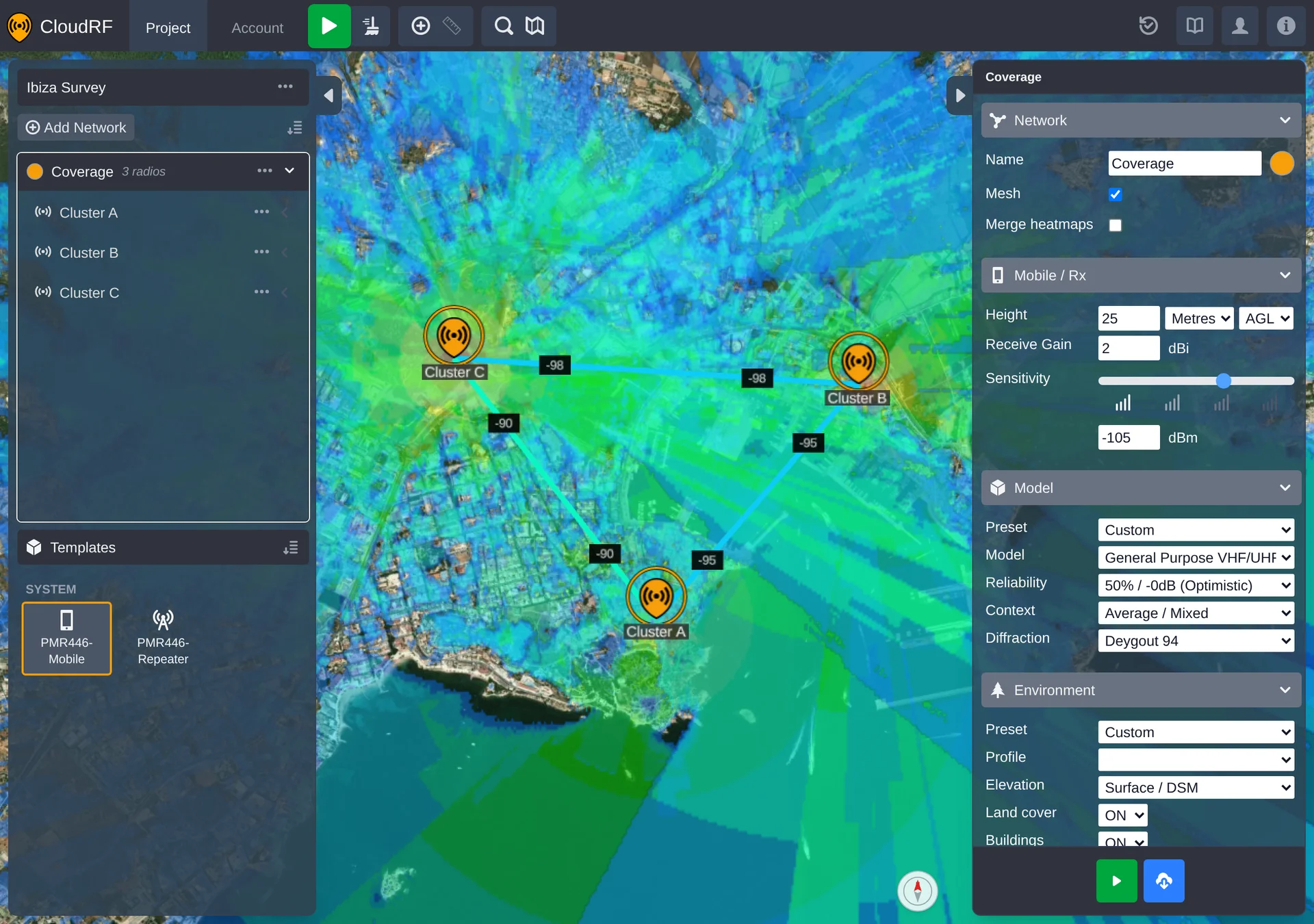
Colour
Every network has a colour, used to draw its radios on the map so one network's radios are easy to tell from another's. Open the network's colour dialog from its settings to change it.
Export
Export downloads this network on its own - not the whole project - as a PNUT file, for backing up or sharing a single network.
Opacity
Hovering a network's row in the left sidebar reveals a opacity icon; clicking it opens a slider for how strongly that network's radios and heatmaps are drawn on the map. It's also reachable from the network's context menu.
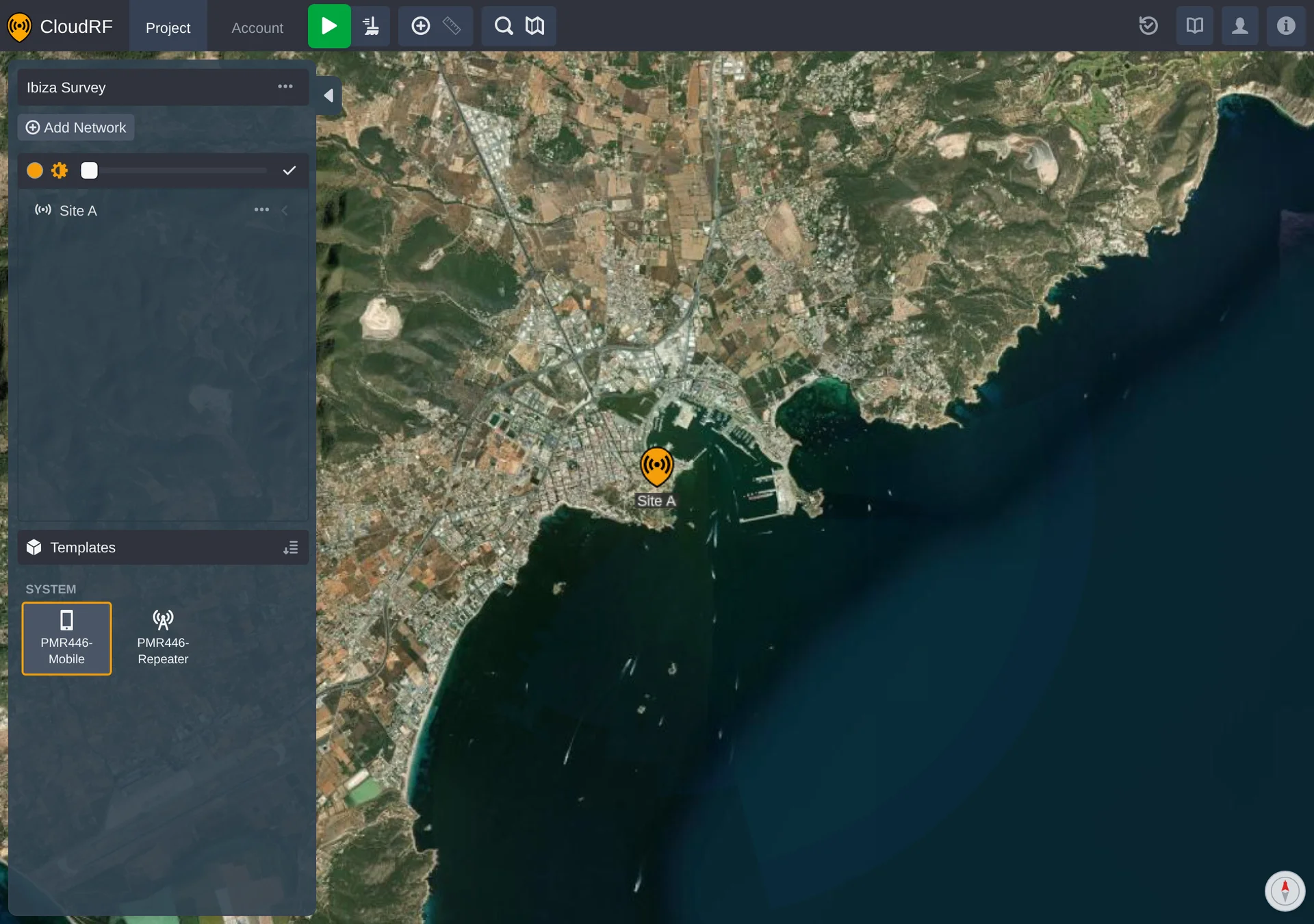
Merge Heatmaps: Before and After
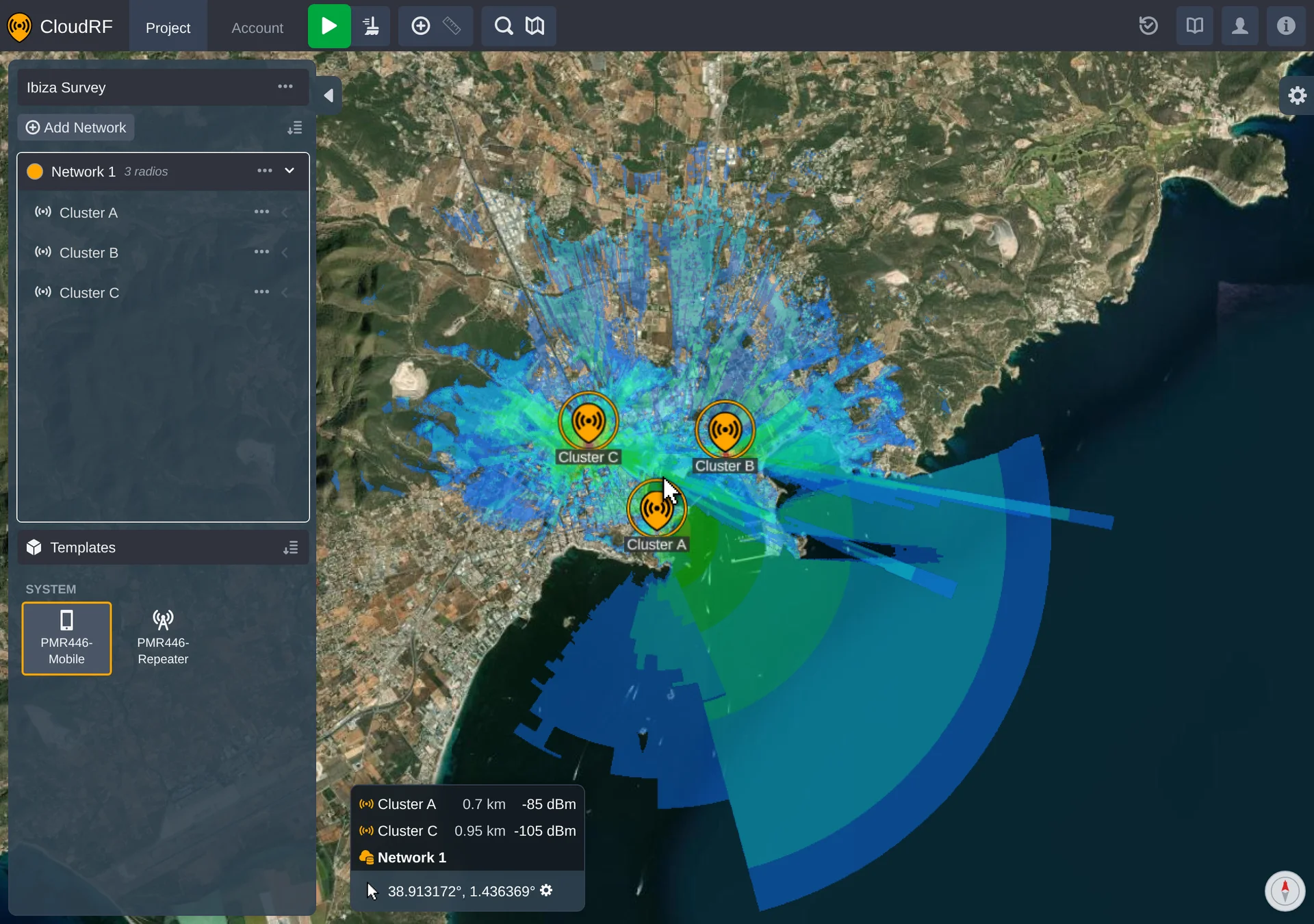
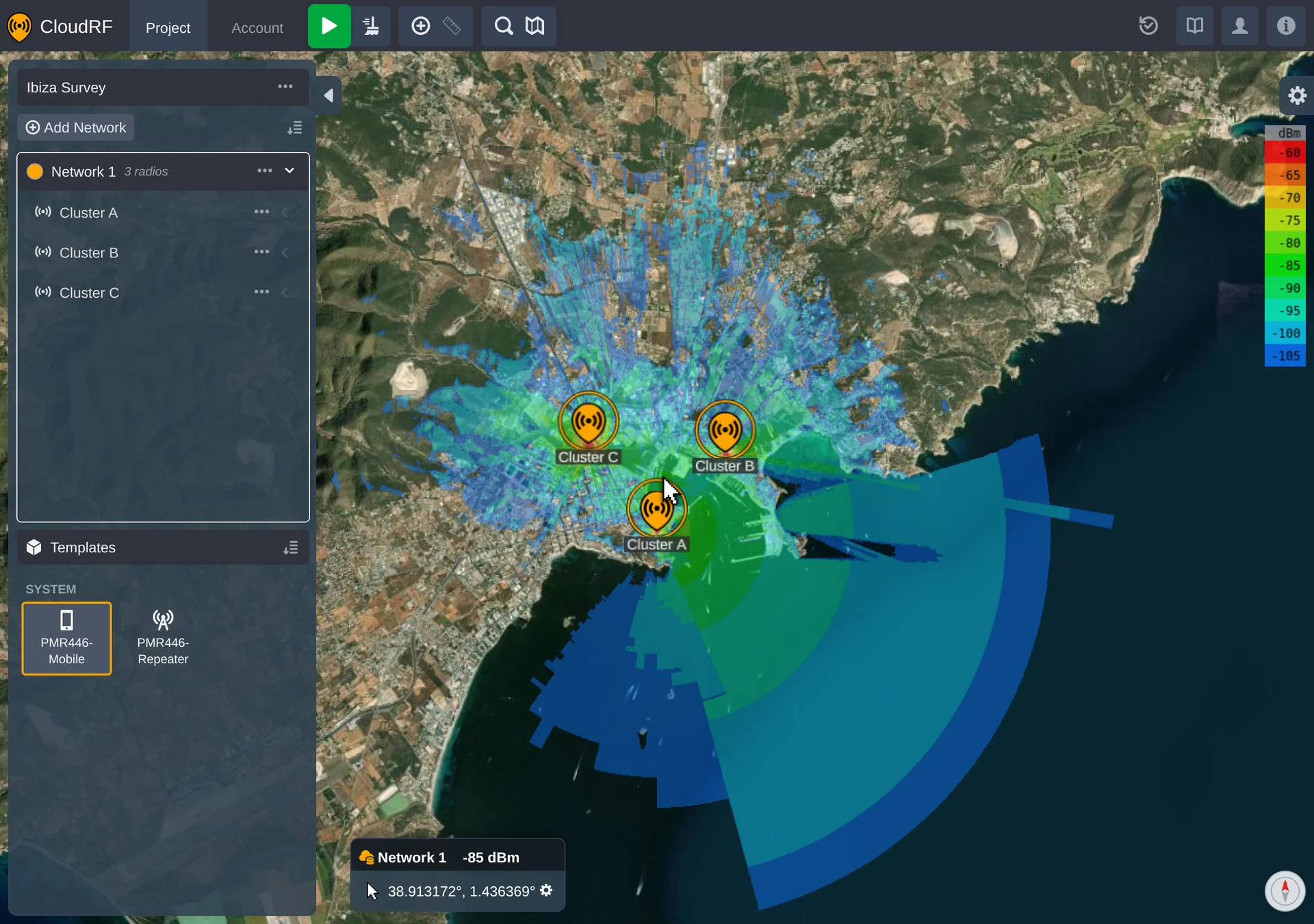
With Merge heatmaps off, each radio in the network shows its own coverage heatmap independently. With it on, those individual heatmaps are replaced by a single combined heatmap representing the whole network's coverage, calculated together rather than site by site.
The colour key follows the same split. Select the network with merging (or mesh) on and the key shows the one scale the combined result is drawn against; with both off there is no network-wide scale to show, and you select an individual radio to see the key for its own heatmap.
Context Menu
Right-click a network - on the map or in the left sidebar - for its context menu:
| Item | Notes |
|---|---|
| Edit | Opens the network settings panel. |
| Rename | Only shown when the network can be renamed. |
| Opacity | Opens the opacity slider inline in the tree. |
| Frame | Frames the network in the map view. |
| Focus / Unfocus | Toggles focus on the network, dimming everything else in the project. |
| Hide All / Show All | Only shown when the network has radios. |
| Hide Paths / Show Paths | Only shown when the network's radios have path profiles. |
| Delete All Paths | Only shown when the network's radios have path profiles. |
| Delete | Deletes the network and its contents. |
| Export | Downloads the network as a PNUT file. |