Right Sidebar
The right sidebar is the settings panel: it shows details and controls for whatever is currently selected. What appears here depends entirely on the selection - select a network, radio or path profile and its own panel takes over. Each object type has its own page:
- Networks - grouping, mesh, merge heatmaps, colour and export.
- Radios - every RF settings group for a transmitter site.
- Path profiles - point-to-point link analysis and the terrain chart.
Selecting the project itself keeps its details here, covered below.
Project
Select the project itself on the left sidebar to show project-level details on the right.
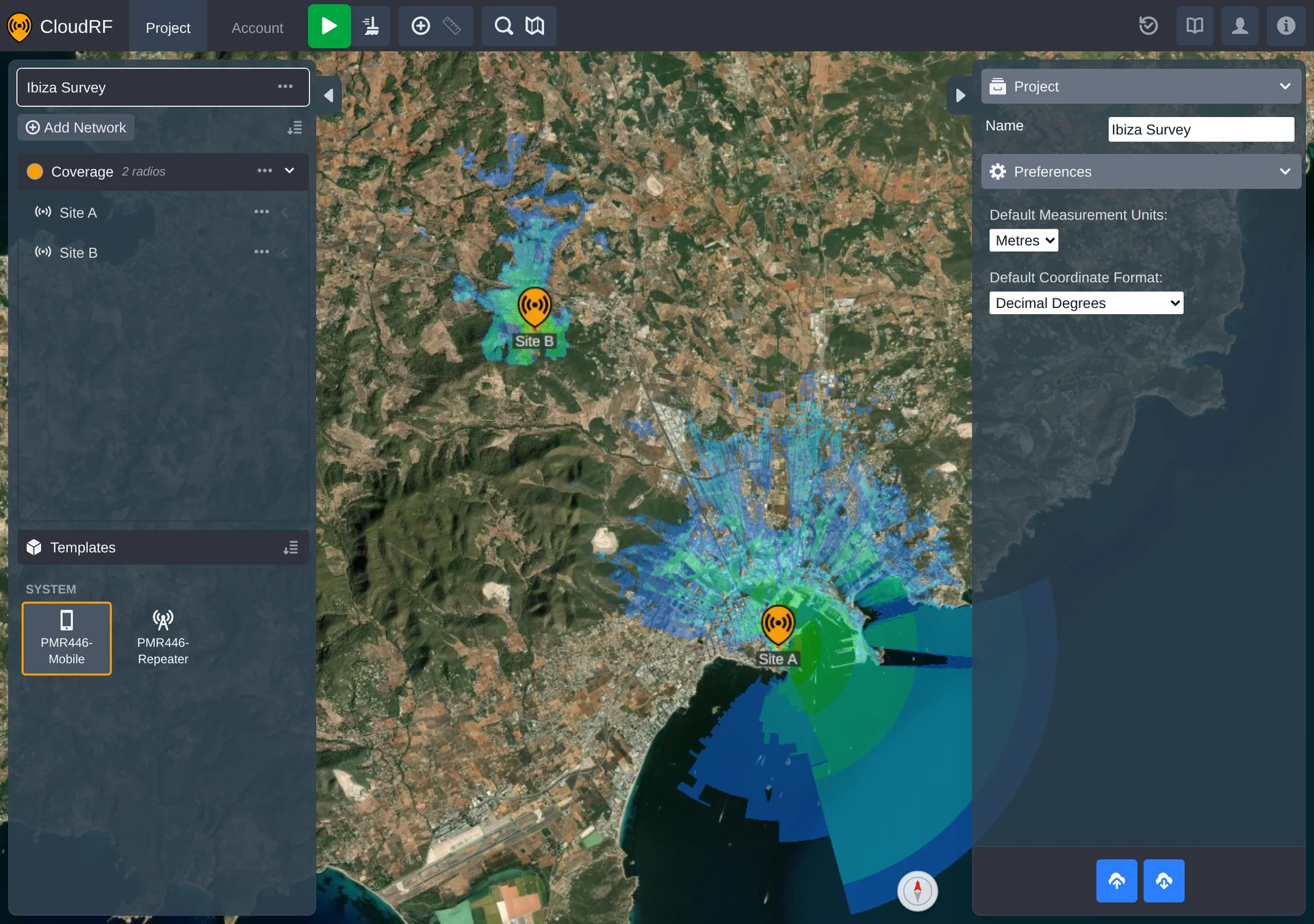
| Field | Description |
|---|---|
| Name | The project's display name, editable in place. |
| Preferences | Opens the project's preference panel - coordinate format and other display-level settings that apply across the whole project. Also reachable from the footer. |
| Import PNUT File(s) | Imports objects from one or more PNUT files into this project, merging their networks and radios into what's already here. |
| Export PNUT File | Downloads the entire project, every network and radio, as a single PNUT file. |
Both PNUT controls live on the project panel itself - select the project on the left sidebar to bring it up. The same Import and Export actions are also on the project's context menu below.
Context Menu
Right-clicking the project on the left sidebar opens a context menu:
| Item | Notes |
|---|---|
| Edit | Opens the project settings panel shown above. |
| Rename | Only shown when the project can be renamed. |
| Frame | Frames the whole project in the map view. |
| Hide All / Show All | Only shown when the project has radios. |
| Import | Imports objects into the project from a PNUT file. |
| Export | Downloads the project as a PNUT file. |