Left Sidebar
The project tree.
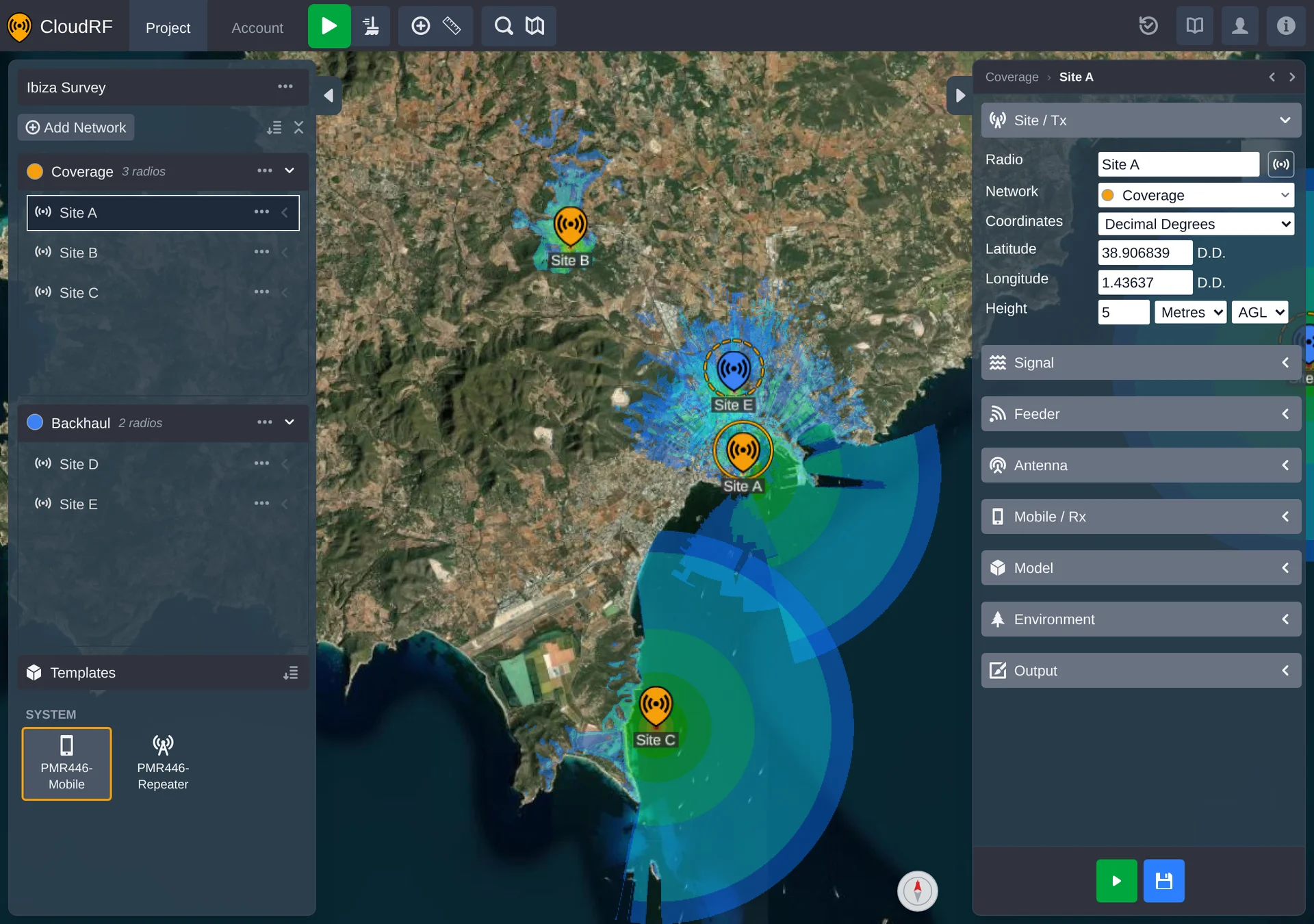
The Tree
The left sidebar lists the project's contents as a tree: networks at the top level, radios nested under the network they belong to, and path profiles nested under the radio they belong to. Every object in the project appears here, and every object can be renamed, shown or hidden, selected, or deleted from here.
| Action | Effect |
|---|---|
| Click an item | Selects it. Selection syncs with the map - the corresponding radio, network or path profile highlights there too, and vice versa. |
| Click the expand arrow | Expands or collapses a network to show or hide its radios. |
| Click the visibility icon ( / ) | Shows or hides the item on the map without removing it from the project. |
| Three dots / right-click | Opens the item's context menu. |
Indicators
Each tree row carries a few small indicators:
| Indicator | Meaning |
|---|---|
| Radio icon (or the default marker) | The icon assigned to a radio. Click it to open the icon picker and change it. |
| / | Visibility on the map. The open eye only appears on hover; a hidden object keeps its crossed eye showing permanently, so you can spot what's hidden without hovering. |
| Opacity (networks only) | Appears on hover; opens the network's opacity slider inline. |
| Spinner | The object is calculating right now. It clears when the run finishes. |
| Count badge | A small italic note next to a network (for example the number of radios it holds, or empty). |
| Three dots | Opens the item's context menu. Appears on hover. |
| / | Expanded or collapsed. Networks expand to show their radios; a radio expands to show its path profiles. |
Context Menus
Every tree item - project, network, radio or path profile - has a context menu, opened from its three-dot button or by right-clicking the item. The menu's contents depend on what kind of object it is; each object's page lists its menu alongside its settings: Networks, Radios, Path profiles, and Right sidebar for the project itself.
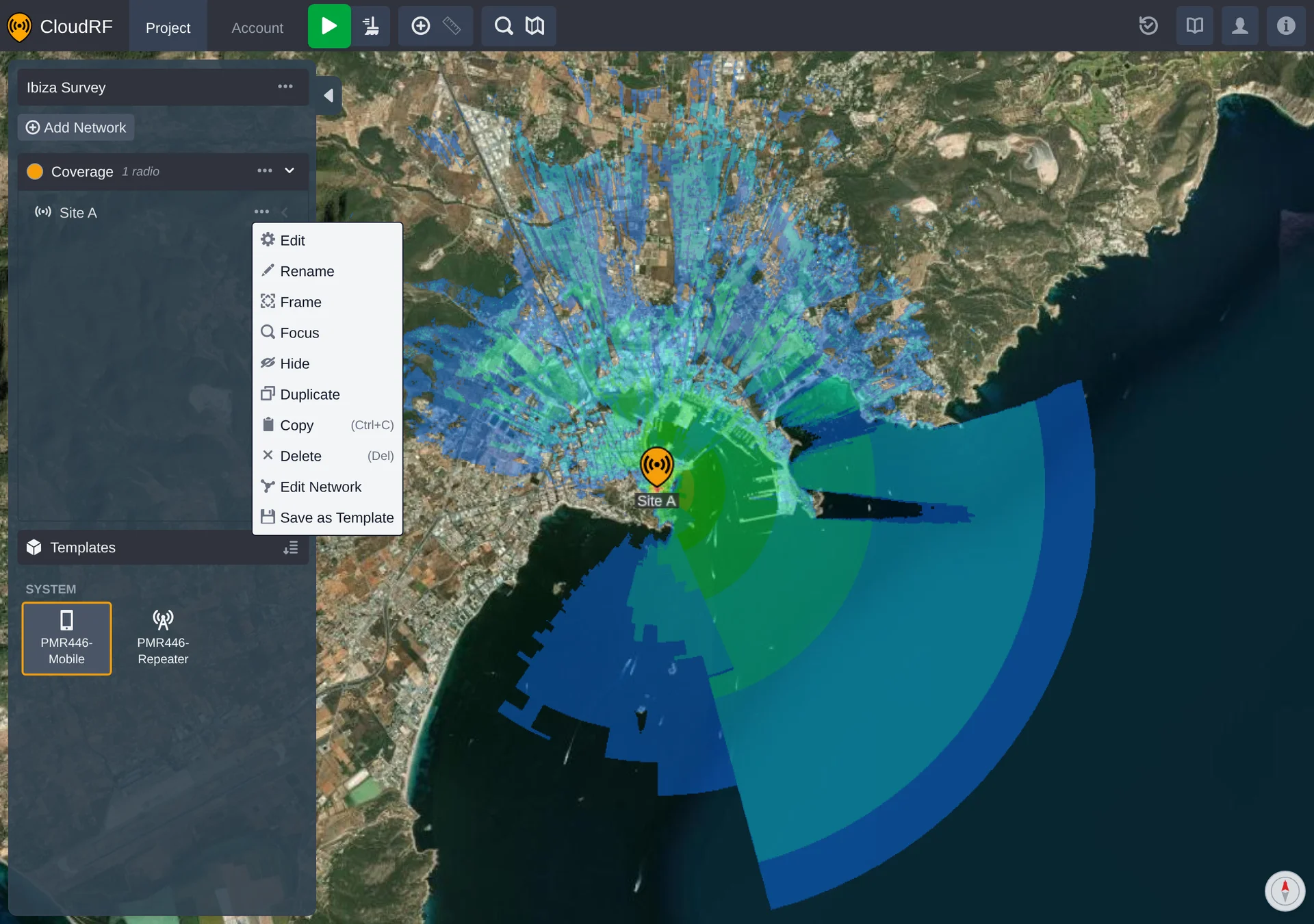
Adding Networks and Radios
Add Network and Add Radio entry points sit in the sidebar for building out the project without leaving the tree. A new radio can also be dropped directly onto the map with the Add Radio tool, which uses whichever template is currently selected.
Templates
Below the network list, a Templates panel lists every template in the account as a grid, grouped by category. One template is always selected, outlined in the active network's colour - that's the template the Add Radio tool and new drop-in radios use.
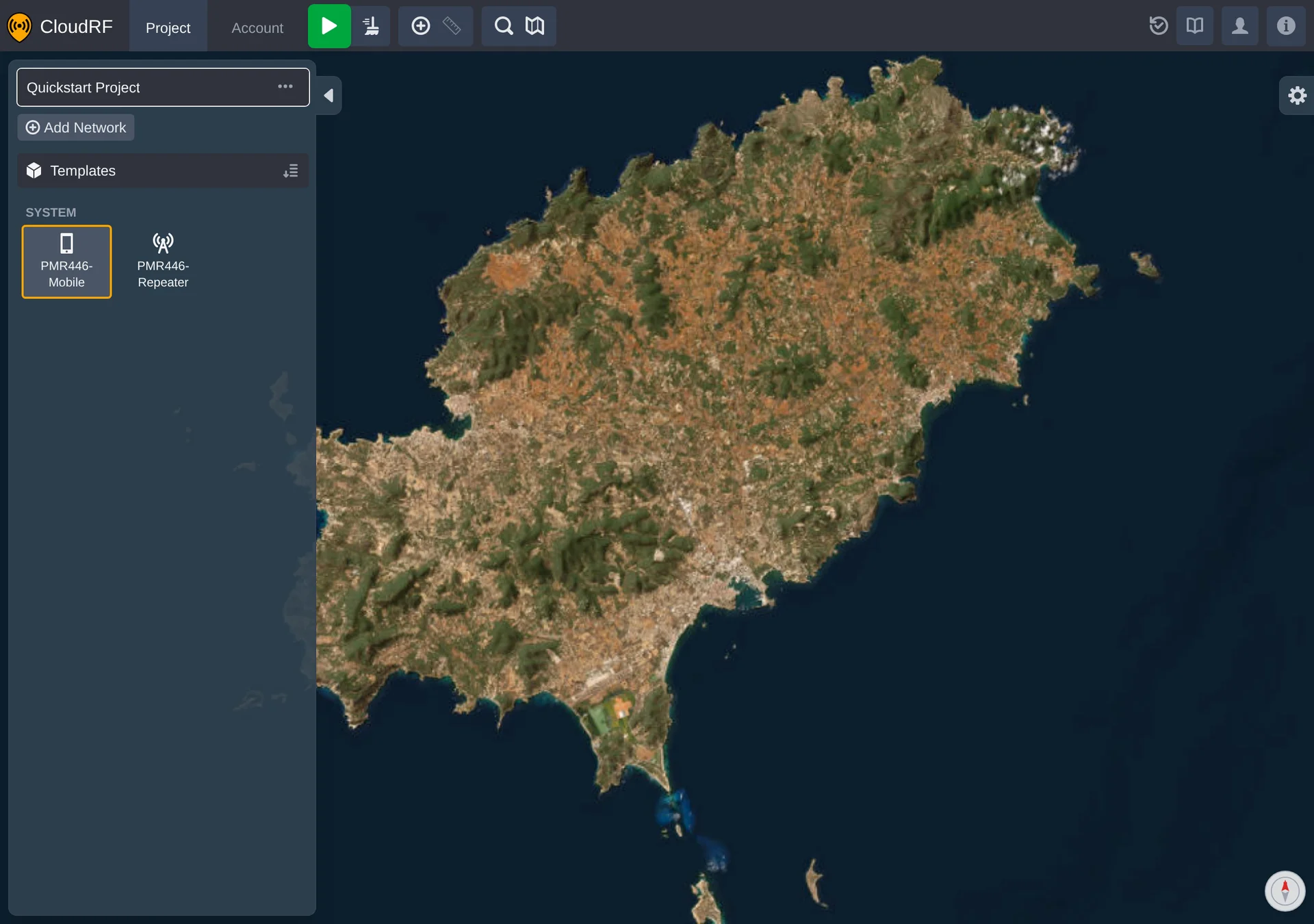
Drag a template onto empty map space to create a new radio from it, or onto an existing radio to overwrite that radio's settings - the radio itself is kept (its position and any path profiles attached to it are preserved), only its equipment and settings are replaced. While a template is being dragged over a radio that would be overwritten, a lime circle is drawn around that radio as a warning, before the drop is committed.
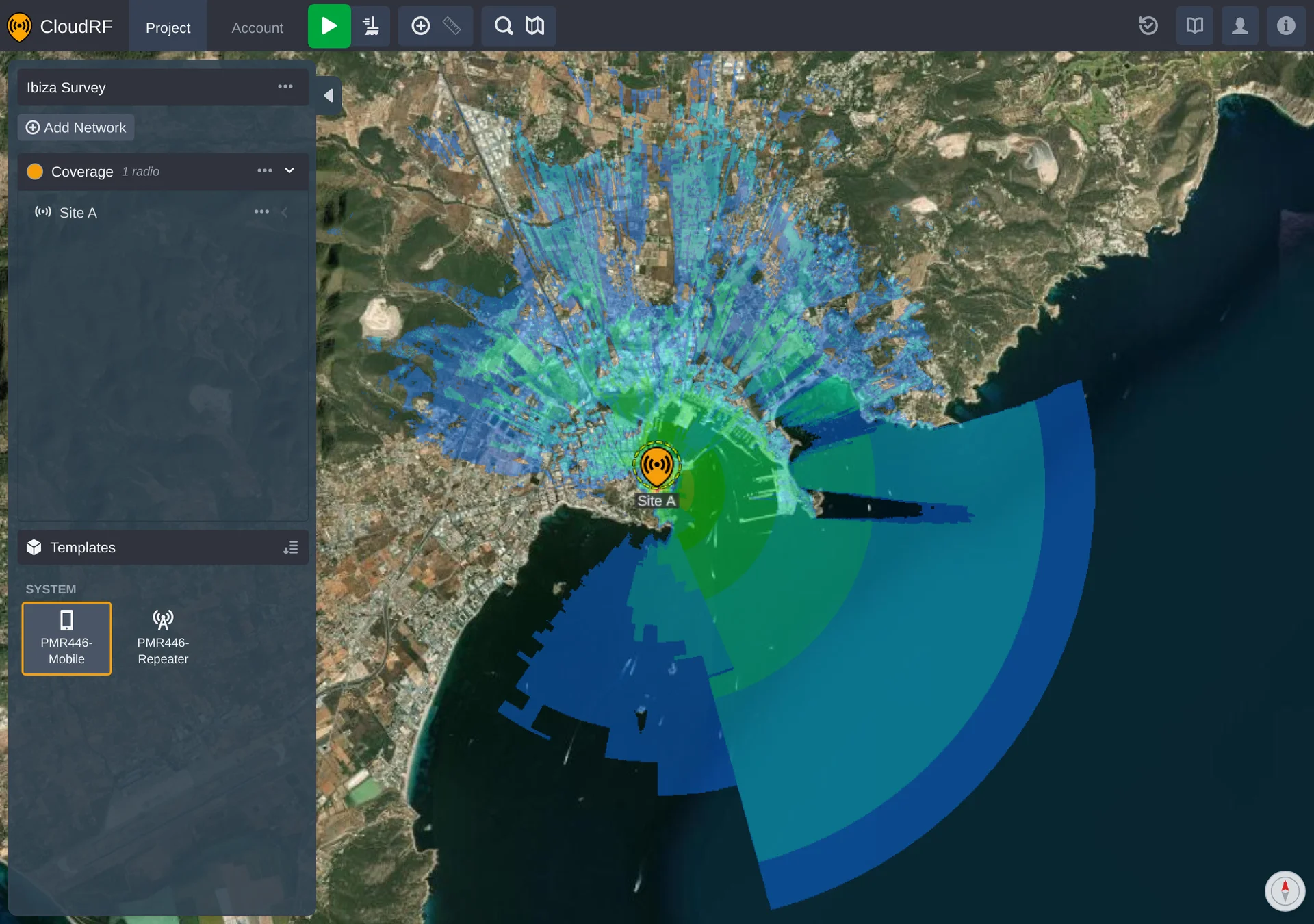
With no templates yet, the panel instead points you at the account's Templates section to create or import one.