Templates
A template is a saved radio object - its equipment and settings - reusable across projects instead of rebuilding the same site each time. Templates are tied to the account and shared across every project in it. By design, the format is an open JSON structure editable in any text editor and easy for an LLM to consume.
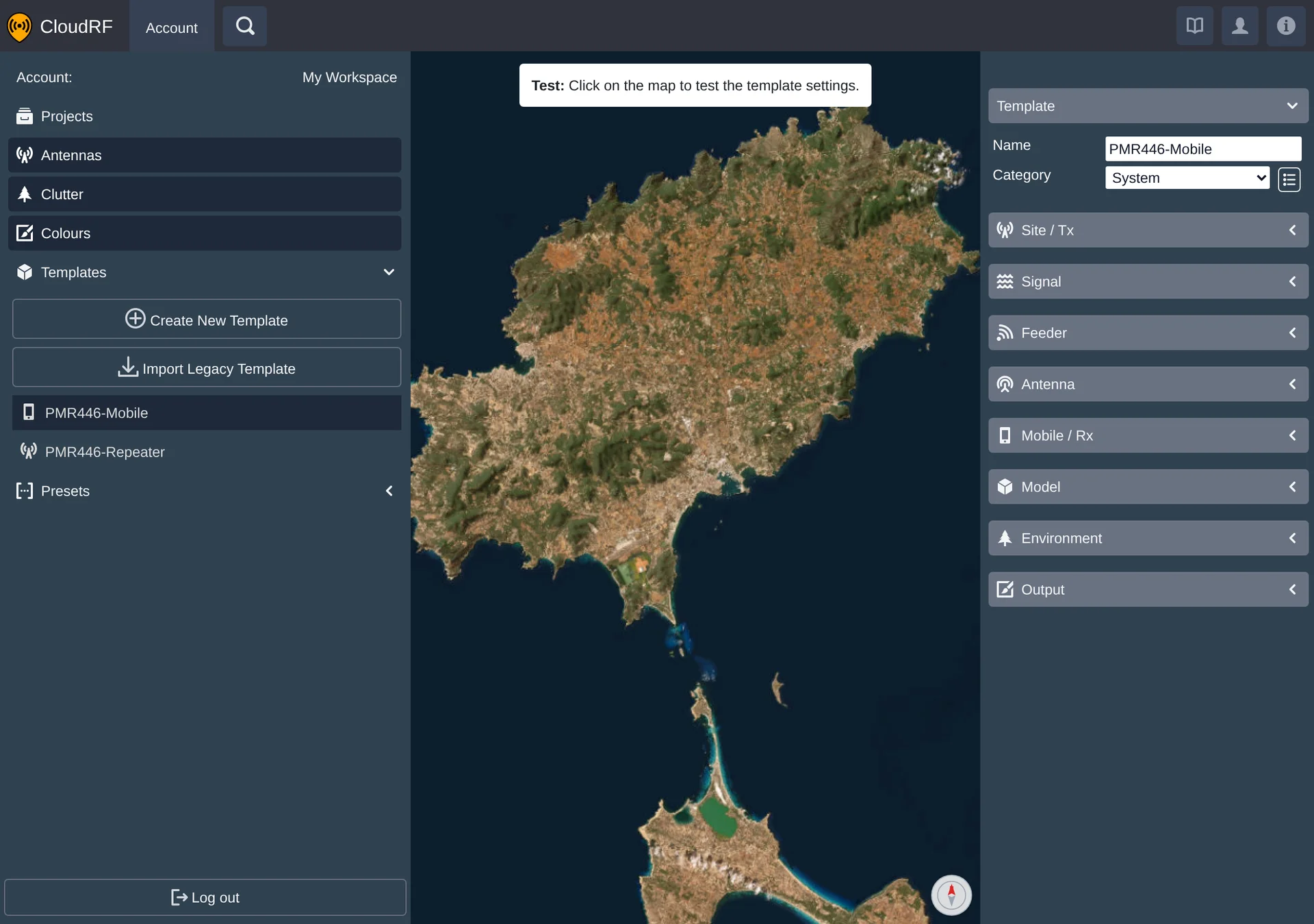
Legacy Templates
Legacy JSON templates are the templates used by ATAK and CloudRF's legacy interface. They can be imported into your account template library, after which they behave the same as any other account template.
Creating a Template
Save as Template on a radio's settings panel saves its current equipment and settings as a new template. The Save as Template dialog names the template and assigns it a category.
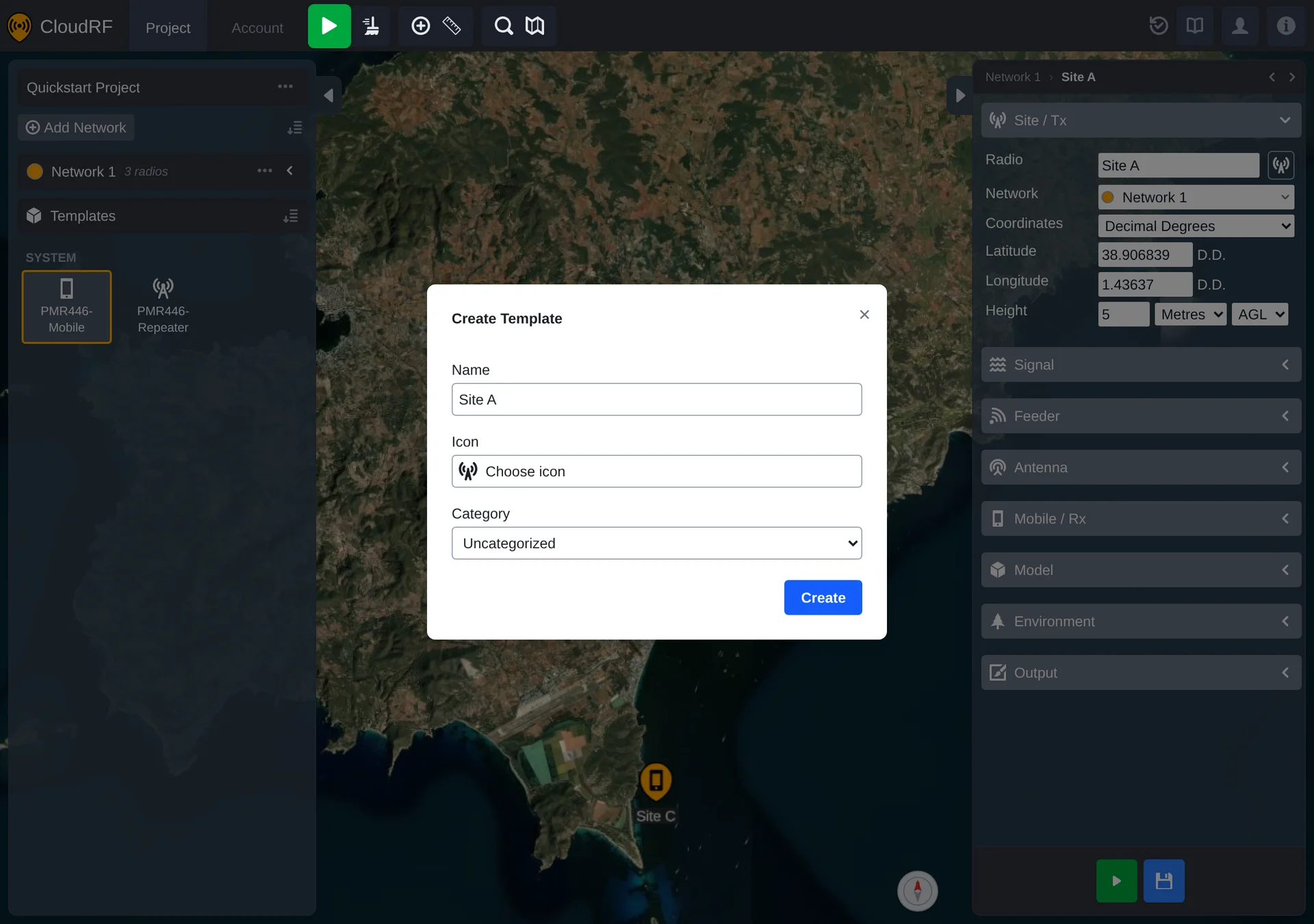
The Template Editor
Opening a template from the list loads it in the template editor, with its own map for positioning and testing.
Note that testing a template performs an area calculation and so uses API credit.
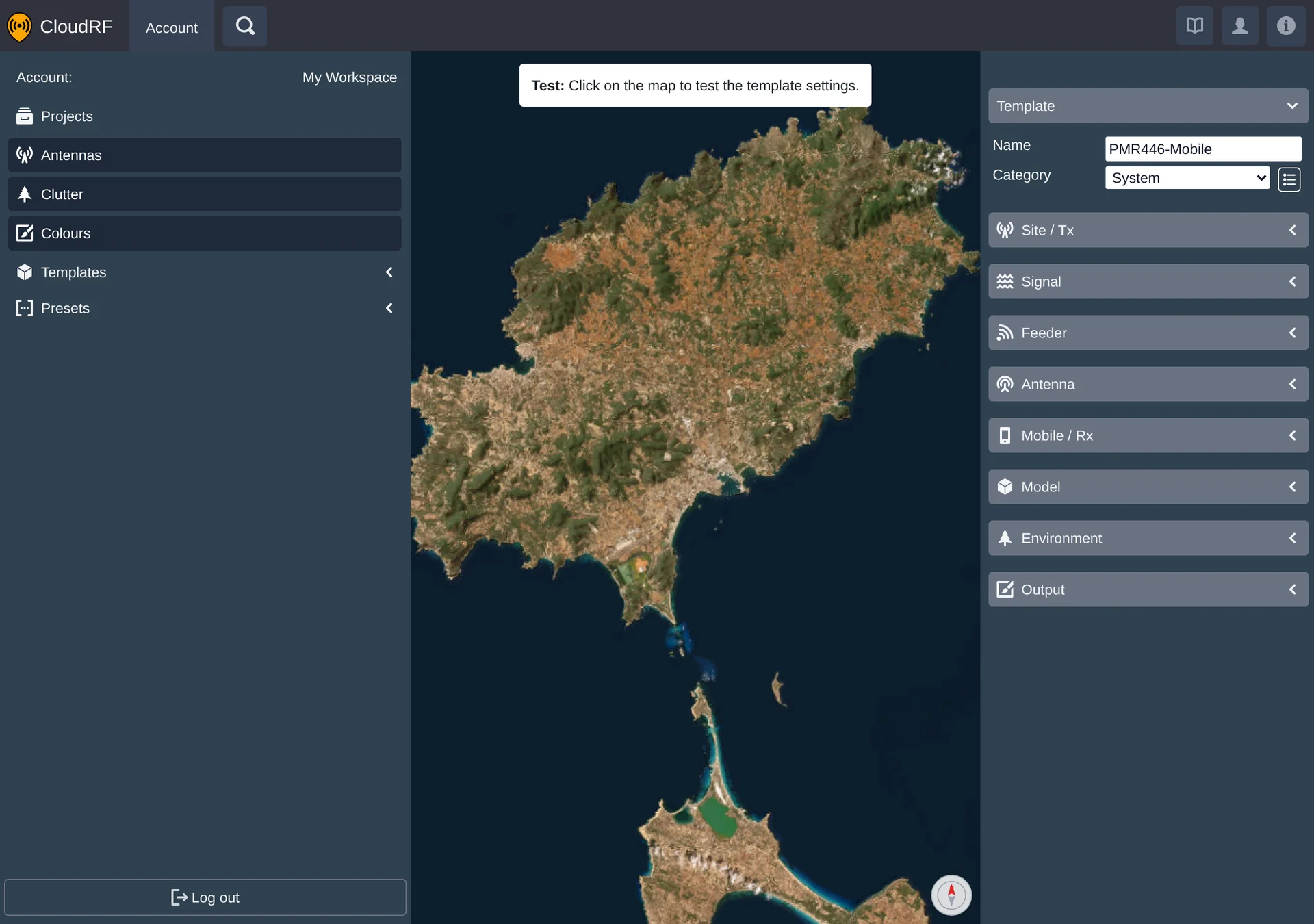
| Action | Effect |
|---|---|
| Edit settings | Updates the template's saved equipment and settings. |
| Click the map | Calculates the template's coverage at that point, for a quick visual check before use. |
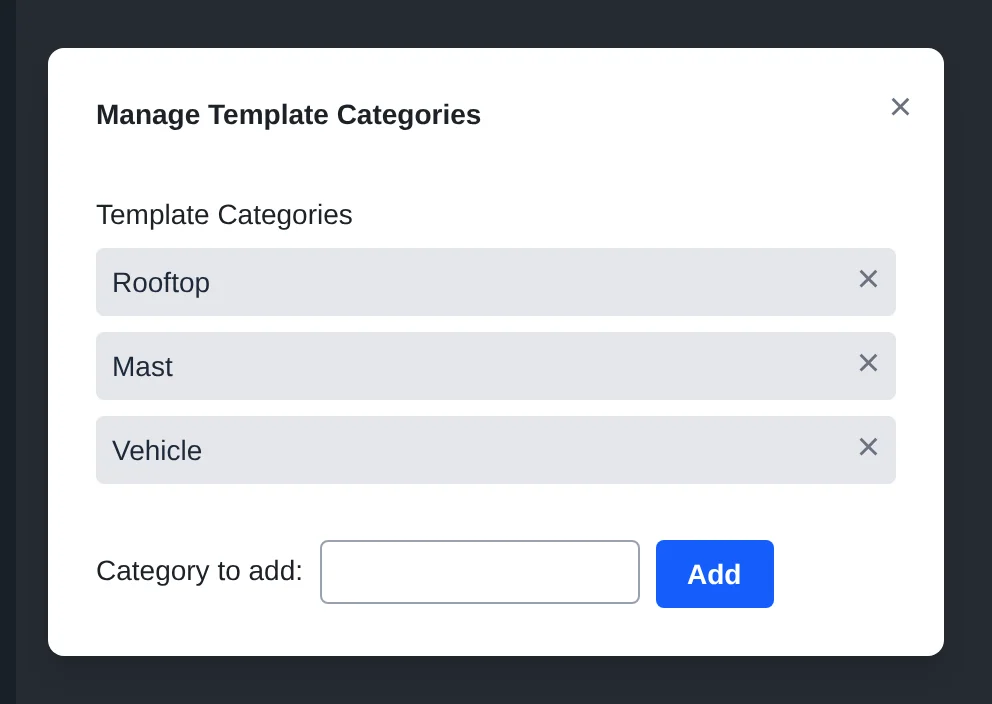
Categories and Icons
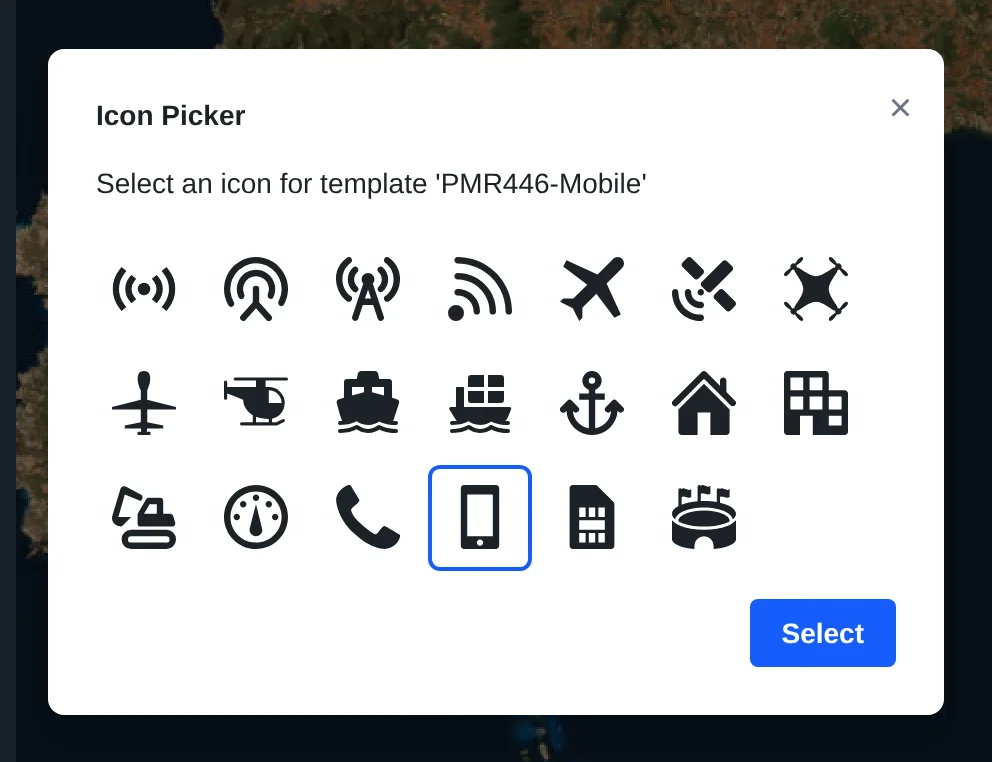
Each template has a category and an icon, set from the editor, so the template list can be scanned at a glance rather than read line by line.
Using a Template
Templates are placed from the project's own Templates panel in the left sidebar: drag one onto the map to create a new radio from it, or onto an existing radio to overwrite its settings.