Projects
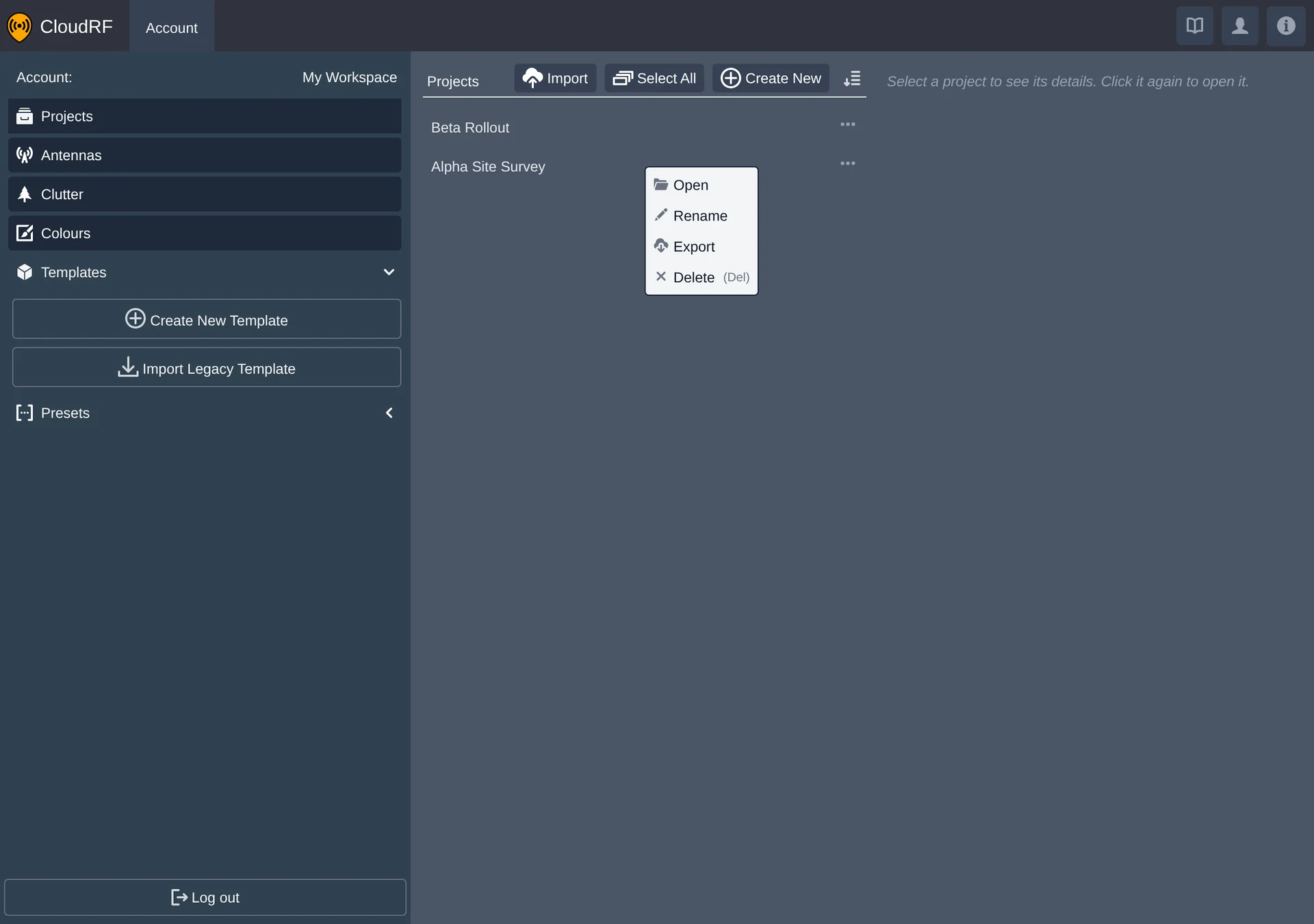
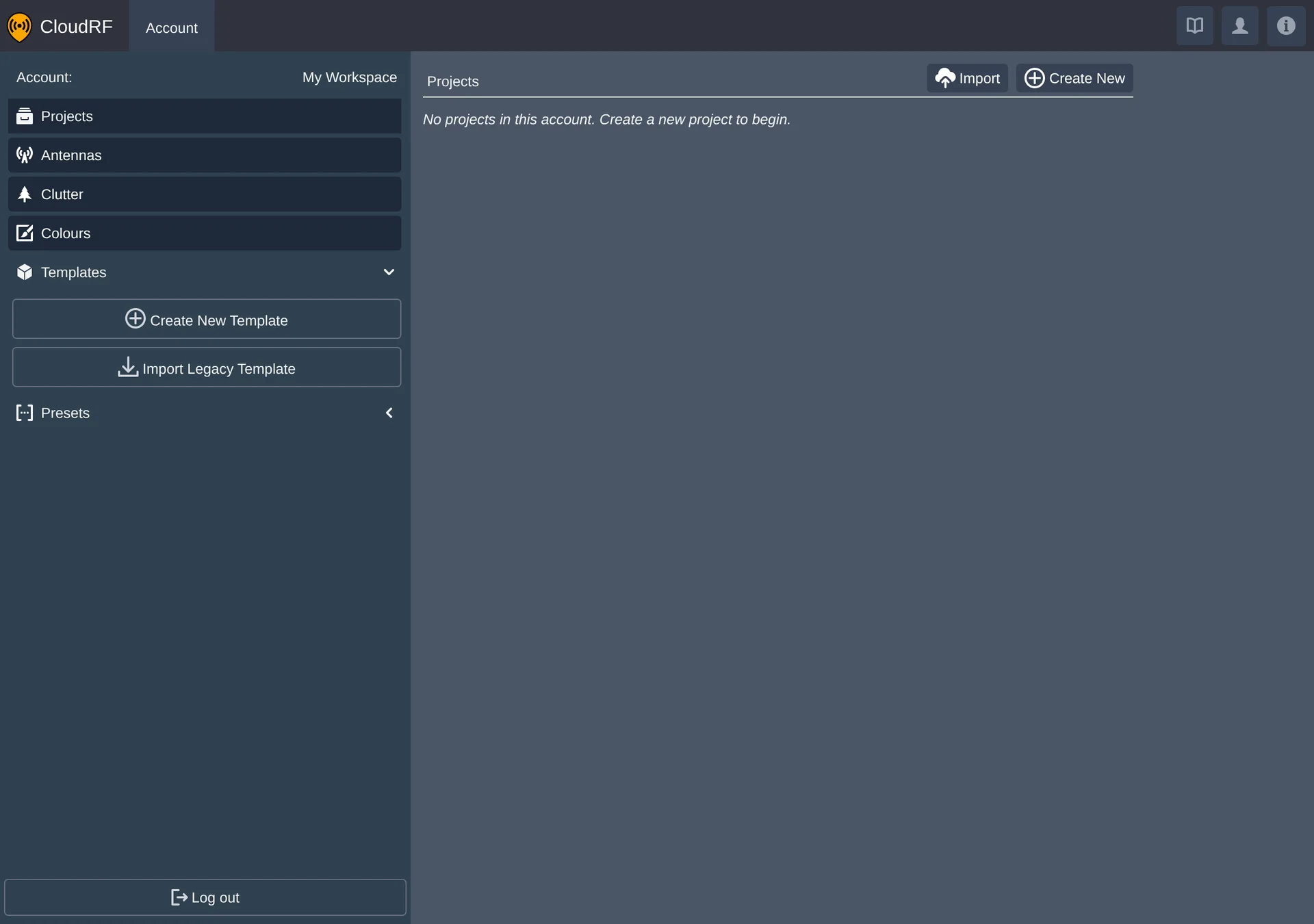
The Projects screen lists every project in the account and is the entry point for opening, organising, importing and exporting them.
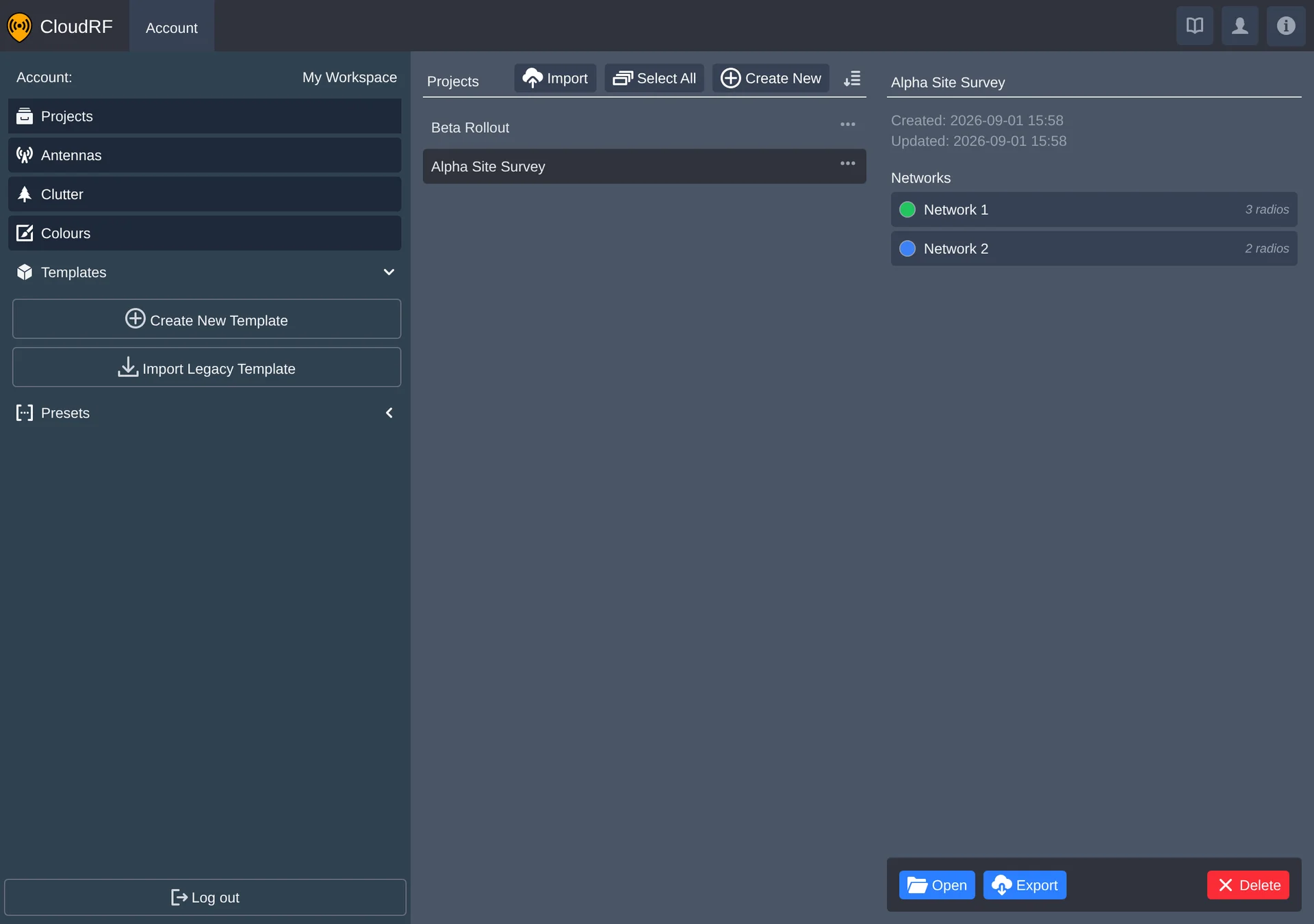
A new account starts empty, with nothing but the control to create a first project.
Creating a Project
Create New Project starts an empty project and opens it directly. See the quickstart for the first steps inside a new project.
Sorting
| Option | Order |
|---|---|
| Name (A-Z) | Alphabetical |
| Name (Z-A) | Reverse alphabetical |
| Last updated (Newest) | Most recently updated first |
| Last updated (Oldest) | Least recently updated first |
The active sort option shows a tick.
Selecting
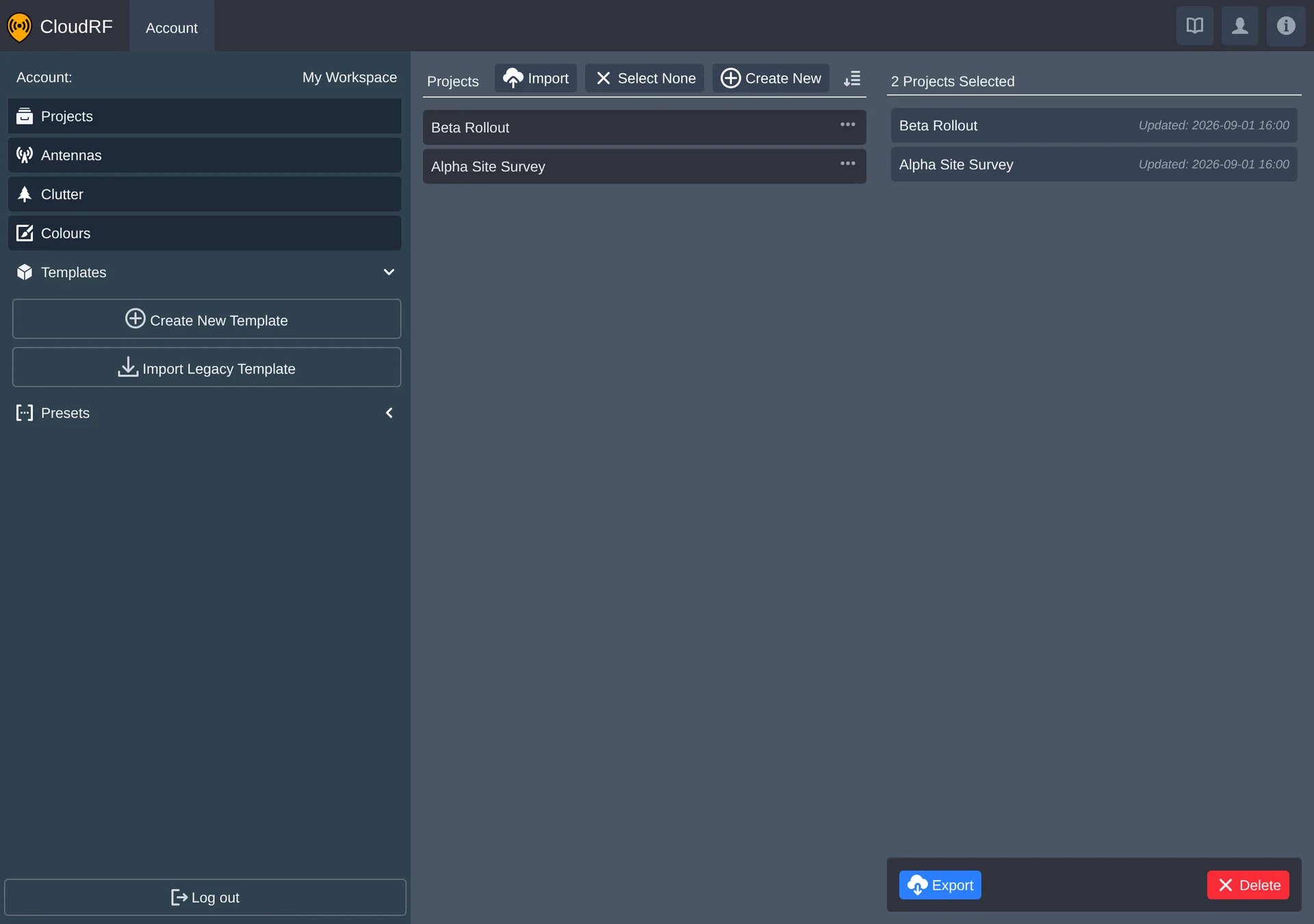
Selecting one project shows its networks on the right-hand detail panel. Multiple projects can be selected at once, for example to export or delete several together.
Import and Export
Projects export as PNUT files, a portable format for backing up or sharing a project outside the account. Export the selected project from its detail panel, or from its context menu below.
Import brings PNUT files back the other way. Each file selected becomes its own new project - pick several and you get several projects, named from the project name inside the file, falling back to the filename. A name already in use gets a numbered suffix rather than overwriting anything. Files that fail to import are listed by name with the reason, and the rest still import.
This is the account-level import. A PNUT file can also be imported into a project you already have open, merging its contents rather than creating anything new - see Project import for that one.
Context Menu
Right-clicking a project opens its context menu:
| Action | Effect |
|---|---|
| Open | Loads the project on the Project tab. |
| Rename | Renames the project in place. |
| Export | Downloads the project as a PNUT file. |
| Delete | Removes the project from the account. |