Core Concepts
The Two Tabs
PNUT switches between two workspaces from a tab in the header.
The Project tab is the map workspace - it's only present once you have a project open. This is where you place radios, build networks and run calculations.
The other tab is your persistent library: projects, templates and presets, available whether or not a project is open.
The Object Model
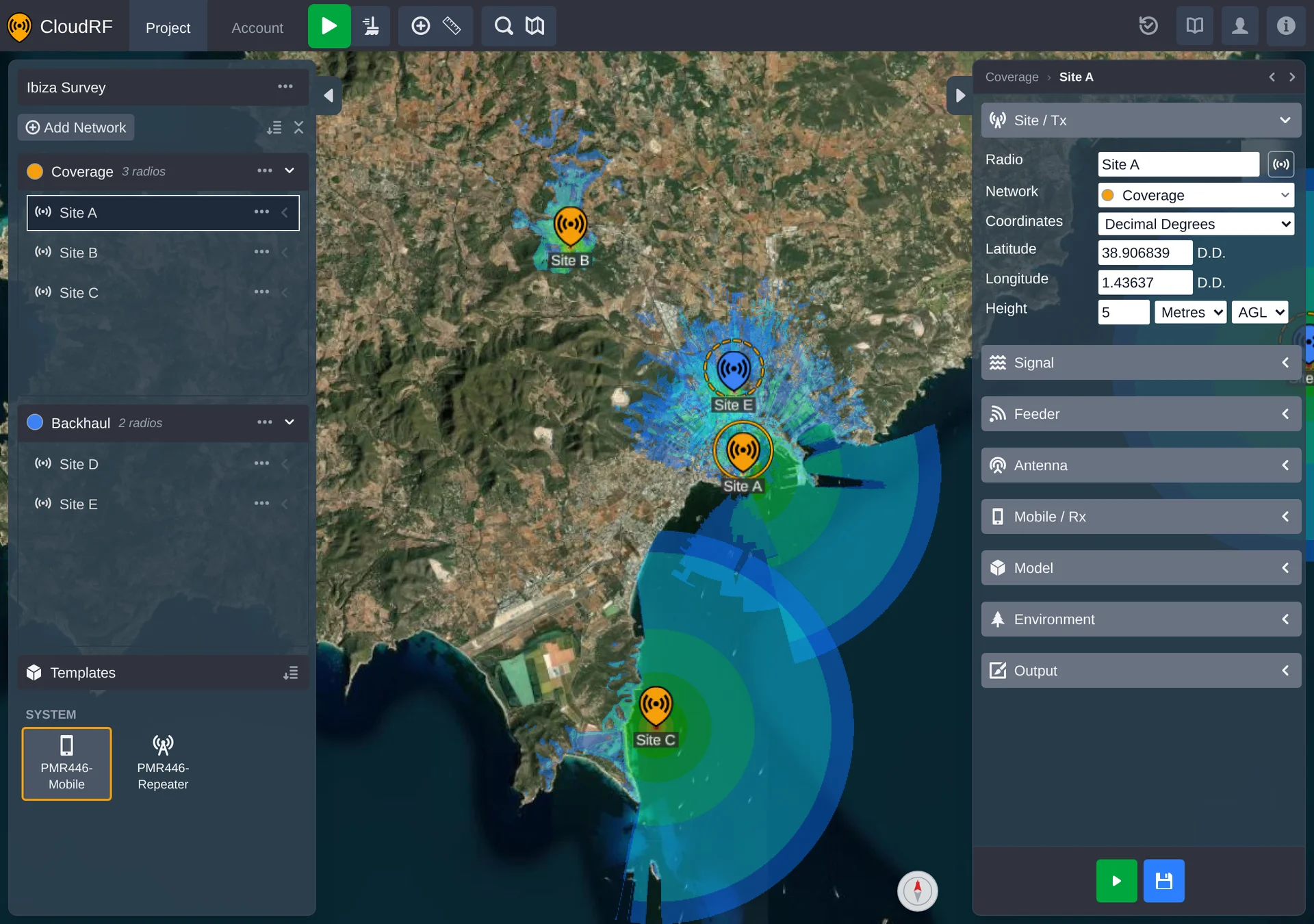
Everything you build sits in one hierarchy: a Project contains Networks, and each network contains Radios. Alongside radios, a project can hold Path Profiles - a link between a radio and an arbitrary point - for studying a single connection rather than broad coverage.
Account-Level vs Project-Level
Not everything lives in the same place. Antennas, clutter datasets and colour schemas are currently managed externally in your CloudRF account, and linked into your projects rather than owned by them. Templates and presets live on your PNUT account page, so they can be reused across all of your projects. Radios and networks, by contrast, belong entirely to the project they're in.
Live-Linking
Templates and presets both save you rebuilding a radio's setup from scratch, but they behave differently once applied. A template is a one-time drop - dragging it onto the map creates a radio with a copy of its settings, and afterwards the two are unrelated. A preset stays linked: change the preset once, and every radio across the organisation using it updates immediately. Choose a template when you want a starting point you'll customise, and a preset when you want many radios to share settings.
See Templates and Presets for how to create and manage each.
Custom Context Menu
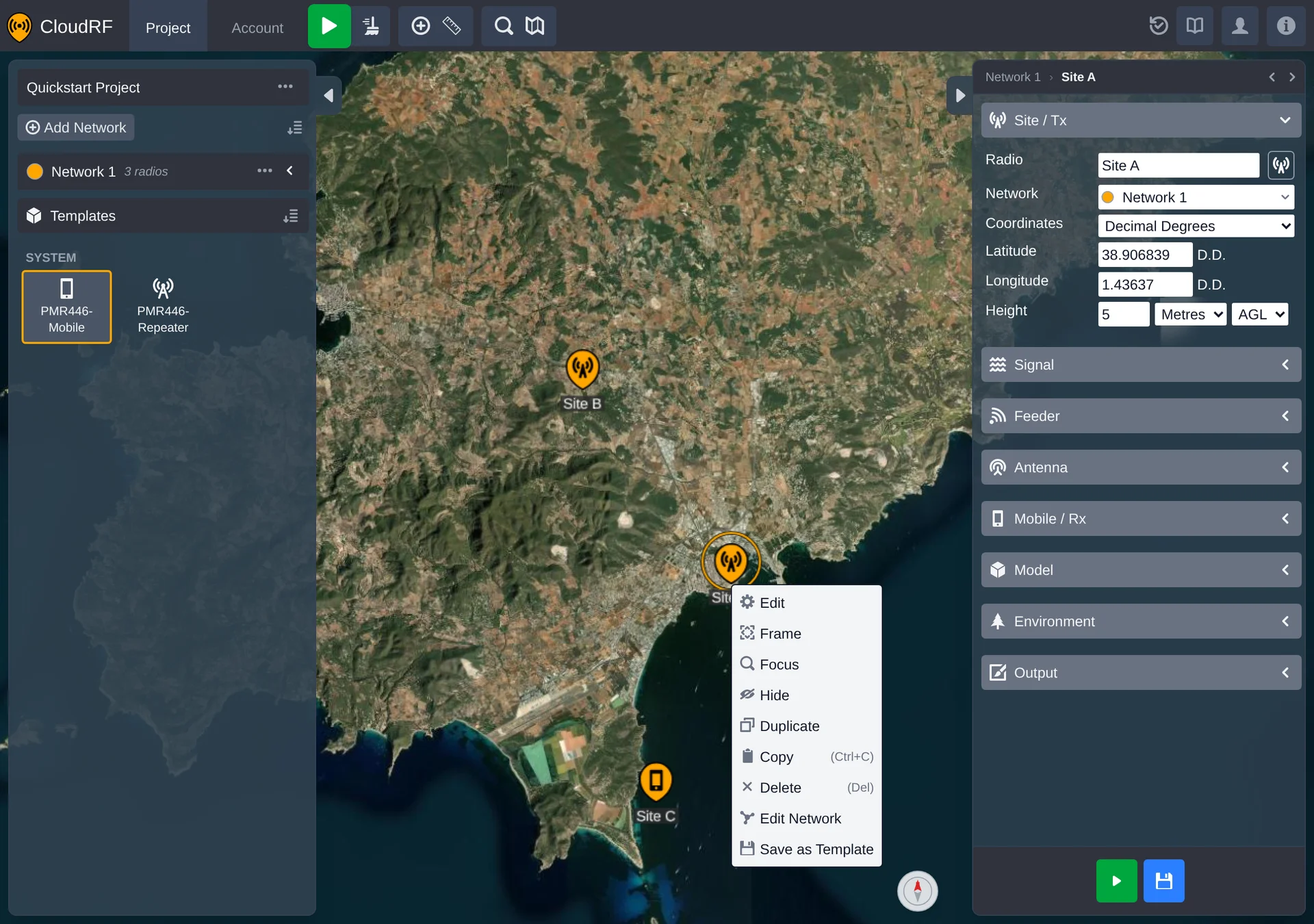
Right-clicking in PNUT opens its own context menu rather than the browser's, with contents that depend on what's under the cursor - see Networks, Radios and Path profiles for what's on offer for each object type. Hold Shift while right-clicking to get the native browser menu instead.
Right-click empty map and you'll get Frame Project, Map Settings, and - if you've copied a radio - you can Paste (Ctrl+V).
Auto calculations
After adding a radio to the map, no calculation is triggered. This gives you the opportunity to edit its settings before any calculation happens.
Once a calculation has been triggered, the radio goes into 'auto' mode. If you drag it to move its position, the new heatmap will automatically be calculated.
If you start editing a radio's settings, that radio is taken out of 'auto' mode until you manually trigger a calculation again. A radio in that state is ringed on the map - see Indicators.
There are exceptions to this rule for path profiles and mesh links, which are fast and so autocalculate more often.
You can trigger a calculation for a single radio, a network or the whole project.